| Symptom | Primary Solution | Success Rate |
|---|---|---|
| “Authentication Required” | Remove & Re-add Google Account | 95% |
| Infinite Loading Circle | Clear Google Play Services Cache | 90% |
| “Couldn’t Sign In” | Verify Date/Time Sync | 85% |
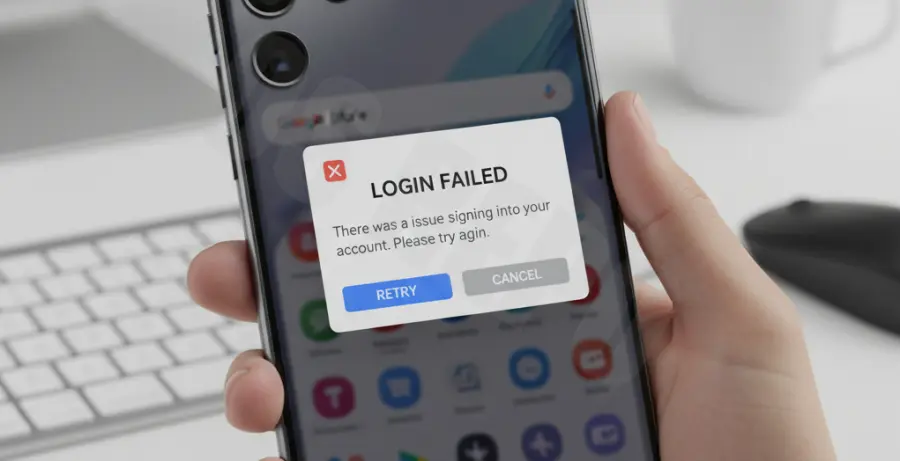
What is the Galaxy S25 Ultra Play Store Login Error?
The Galaxy S25 Ultra login failed error is a common authentication hurdle where the device cannot establish a secure handshake with Google’s servers. This prevents users from accessing the Play Store, downloading apps, or updating current software.
Typically, this issue arises on the Galaxy S25 Ultra due to corrupted cache data in the Google Play Services framework or an out-of-sync system clock. Because the S25 Ultra utilizes the latest Android security protocols, even a slight discrepancy in account tokens can trigger a lockout.
Step-by-Step Solutions
1. Clear Cache and Data for Google Play Infrastructure
Corrupted temporary files are often the root cause of login failures. You need to reset the storage for both the Play Store and Google Play Services.
Go to Settings > Apps > Google Play Store > Storage and tap Clear Cache and Clear Data. Repeat these exact steps for the Google Play Services app.
# For advanced users: Clearing Play Store data via ADB
adb shell pm clear com.android.vending
adb shell pm clear com.google.android.gms
2. Refresh the Google Account Token
If clearing the cache fails, the authentication token stored on your Galaxy S25 Ultra may be invalid. Removing and re-adding the account forces a fresh login session.
Navigate to Settings > Accounts and backup > Manage accounts. Select your Google account, tap Remove account, and restart your device. Once rebooted, open the Play Store and sign in again.
3. Force Sync Date and Time
Security certificates used by Google have strict expiration timestamps. If your Galaxy S25 Ultra’s internal clock is incorrect, the login request will be rejected by the server.
Go to Settings > General Management > Date and time. Toggle the Automatic date and time switch OFF and then back ON to force a resync with your network provider.
4. Reset Network Settings
Sometimes the issue isn’t the account, but the network configuration. A glitch in the DNS or IP assignment can block Google’s authentication servers.
Navigate to Settings > General Management > Reset > Reset mobile network settings. Note that this will clear your saved Wi-Fi passwords, so ensure you have them handy before proceeding.