Symptoms & Diagnosis
The iPhone 16 Pro is a powerhouse, but many users transitioning to iOS 18 have reported significant battery depletion. This often manifests as the device feeling warm to the touch even when not in use.
Common symptoms include a sudden percentage drop overnight and the “System Data” category consuming a disproportionate amount of storage and energy. Diagnosis starts with identifying whether the drain is caused by software indexing or a rogue background process.
| Symptom | Probable Cause | Immediate Action |
|---|---|---|
| Rapid drain in first 48 hours | Spotlight Indexing | Connect to Wi-Fi and Charge |
| Overheating while idle | Background App Loop | Force Restart Device |
| Standby drain (Night) | Always-On Display / Find My | Toggle Low Power Mode |
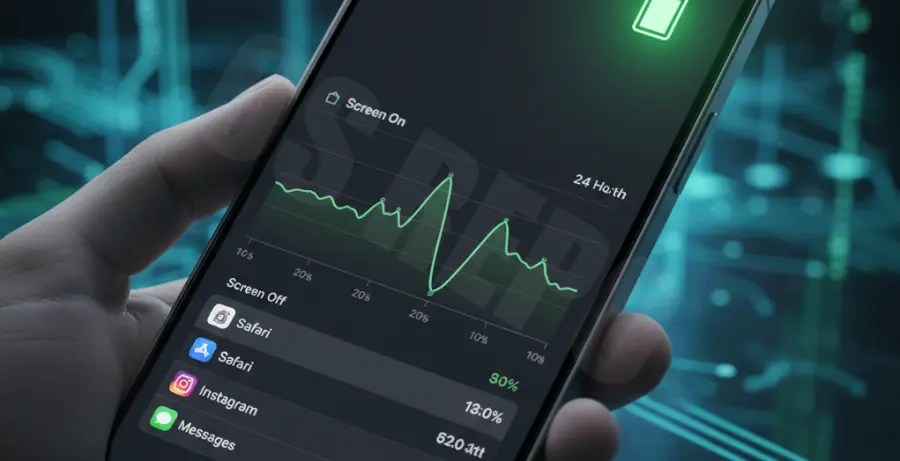
To pinpoint the exact cause, navigate to Settings > Battery. Look for apps that show high “Background Activity” despite minimal usage time. If “Home & Lock Screen” is high, your widgets or Always-On Display settings may be the culprit.
Troubleshooting Guide
The first step in fixing iPhone 16 Pro battery drain on iOS 18 is managing the new ProMotion and Always-On Display features. These hardware-software integrations are often the primary energy consumers.
Optimize Display Settings
iOS 18 introduces deeper customization for the Lock Screen. However, high-frequency updates for widgets can drain the battery. Disable “Show Wallpaper” in the Always-On Display settings to save significant power.
Reset System Logic
Sometimes the battery calibration data becomes corrupted during an OTA (Over-The-Air) update. While iOS doesn’t have a traditional terminal, developers often use sysdiagnose to analyze power logs. You can simulate a log check via a Mac or analyze the analytics data manually.
# This is a conceptual representation of checking power logs via terminal
# for advanced users debugging iOS power states
mobiledevice diagnostics iopower --check-drain-rate
echo "Analyzing iOS 18 Power Management Daemons..."
sudo tail -f /var/logs/powerd.log
Manage Background App Refresh
Go to Settings > General > Background App Refresh. It is highly recommended to set this to “Wi-Fi” only or turn it off for apps like Facebook, TikTok, and Instagram which constantly ping servers.
Prevention
Preventing future battery drain on the iPhone 16 Pro involves maintaining healthy charging cycles. Use the “80% Limit” feature found in the new Battery Health settings to reduce chemical aging of the lithium-ion cell.
Keep your apps updated. Developers frequently release patches for iOS 18 compatibility that resolve hidden memory leaks. Always ensure you are running the latest point-release of iOS (e.g., iOS 18.0.1) as these contain critical thermal management fixes.
Finally, avoid using the phone in extreme temperatures. The iPhone 16 Pro’s titanium frame dissipates heat differently than previous models, and excessive external heat can trigger internal throttling and rapid battery discharge.