| Fix Strategy | Action to Take |
|---|---|
| The “Wait” Method | Give the processor 2–5 minutes to resolve background tasks. |
| Process Priority | Use Task Manager to set Word’s priority to “High.” |
| Network Check | Disconnect from Wi-Fi or Ethernet to stop sync hangs. |
| Command Line | Use CMD to identify blocked add-ins without killing the task. |
What is Microsoft Word Not Responding Fix Without Closing?
A “Microsoft Word not responding fix without closing” refers to troubleshooting methods that unfreeze the application without losing unsaved data. When Word hangs, it usually means the software is stuck in a loop or waiting for a hardware resource.
Closing the program abruptly through Task Manager often results in data loss. A non-destructive fix focuses on reallocating CPU resources or forcing the application to bypass the specific process causing the lag.
Step-by-Step Solutions
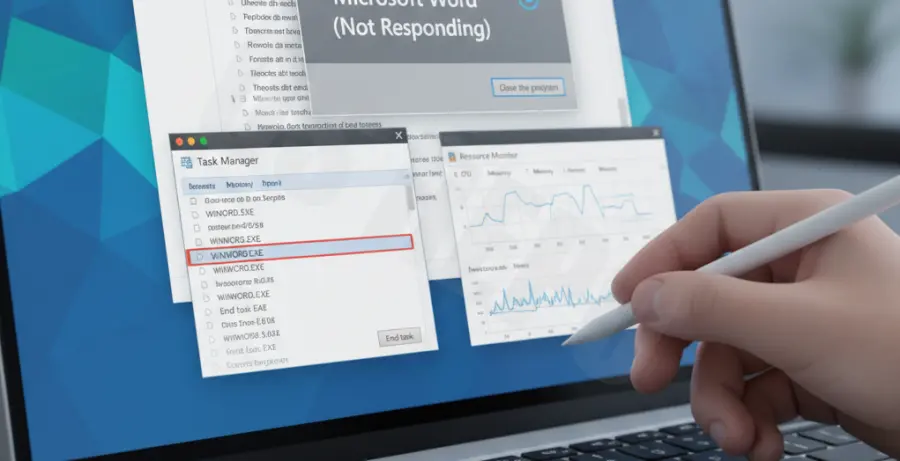
Method 1: Change Process Priority in Task Manager
Sometimes Word freezes because other background applications are hogging the CPU. You can tell Windows to prioritize Word’s recovery.
- Press
Ctrl + Shift + Escto open Task Manager. - Go to the Details tab.
- Find
WINWORD.EXE. - Right-click it, hover over Set priority, and select High.
- Wait for a few moments to see if the interface becomes responsive.
Method 2: Check for Printer or Network Interference
Word often freezes because it is trying to communicate with a printer that is offline or a cloud drive that is disconnected. This is a common cause for the “Not Responding” status.
Try disabling your internet connection temporarily. If Word was trying to sync to OneDrive, cutting the connection may force it to time out and return control of the UI to you.
Method 3: Using Command Prompt to Identify Issues
While you cannot “fix” a frozen app directly with a command without restarting, you can check if system files are causing the hang using the System File Checker. Run this in a separate window:
sfc /scannowThis command verifies the integrity of Windows files that Word relies on to function. If a DLL is corrupted, this may resolve the conflict in the background.
Method 4: The “Print Screen” Trick
A known quirk in Windows allows some users to “wake up” a frozen application by triggering a system-level interrupt. Try pressing PrtSc (Print Screen) or Windows + Tab.
This forces the Desktop Window Manager (DWM) to redraw the application frames. In many cases, this refresh action can kickstart a stalled graphical user interface (GUI).
Method 5: Wait for AutoRecover
If all else fails and you are afraid to lose hours of work, simply wait. Microsoft Word has an internal “Heartbeat” thread. If the app is truly stuck, wait at least 10 minutes.
Even if the app remains frozen, Word may still trigger an AutoRecover save in the background before the process totally crashes. You can then check the following path once you eventually restart:
%AppData%\Microsoft\Word\