Symptoms & Diagnosis
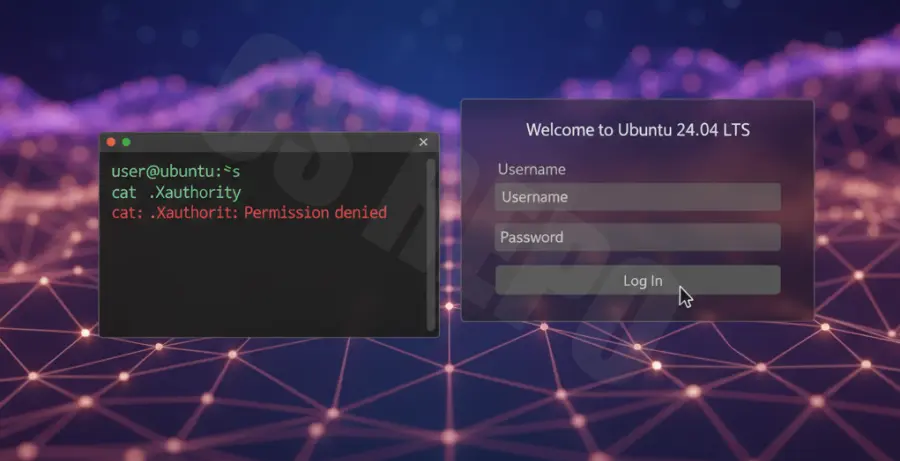
The .Xauthority permission denied error is a common cause of login loops in Ubuntu 24.04. When you enter your password, the screen flickers and returns you to the login prompt immediately.
This happens because the X-server cannot write to the authority file in your home directory. Without this file, the graphical session cannot authenticate and fails to launch.
| Symptom | Description |
|---|---|
| Login Loop | Entering the correct password just reloads the login screen. |
| TTY Error | Errors like “Xauthority not writable” appearing in terminal logs. |
| Root Ownership | The .Xauthority file is owned by root instead of the user. |
To confirm the issue, switch to a TTY console by pressing Ctrl + Alt + F3 and log in with your username and password.
Troubleshooting Guide
Once you are logged into the TTY terminal, you can diagnose and fix the permissions of the file using the following steps.
Step 1: Check File Ownership
Run the following command to see who owns the .Xauthority file in your home directory.
ls -l ~/.XauthorityIf the output shows “root” as the owner, you have found the cause of the login failure. The file must be owned by your specific user account.
Step 2: Correct the Ownership
Use the chown command to give ownership back to your user. Replace $USER with your actual username if the variable doesn’t auto-fill.
sudo chown $USER:$USER ~/.XauthorityStep 3: Fix Directory Permissions
Sometimes the temporary directory permissions are also restricted. Ensure your home directory has the correct write permissions.
chmod 755 /home/$USERStep 4: Delete and Regenerate (Alternative)
If changing ownership doesn’t work, the file might be corrupted. Deleting it will force Ubuntu to create a clean version at the next login.
rm ~/.XauthorityAfter running these commands, return to the login screen by pressing Ctrl + Alt + F1 (or F2/F7 depending on your config) and attempt to log in normally.
Prevention
To avoid this issue in the future, avoid running graphical applications with sudo directly from the terminal. This often causes root-owned files to appear in your user folder.
Use sudo -H if you must run a command that touches your home directory, as this keeps the environment variables pointed at the root home instead of yours.
Regularly check your disk space using df -h. A full disk can sometimes cause write failures that result in corrupted permission flags on system-critical files like .Xauthority.