Immediate Fix
For most users on Apple Silicon (M1, M2, or M3), macOS Sequoia screen flickering is often tied to a hung WindowServer process or a refresh rate synchronization error. You can force a reset of the graphics subsystem without restarting your Mac.
Open the Terminal app and execute the following command to restart the Dock and related UI processes:
killall DockIf the flickering persists, you should force a refresh of the display’s color profile by toggling the “Preset” in Display settings. This often clears the frame buffer causing the visual artifacts.
Technical Explanation
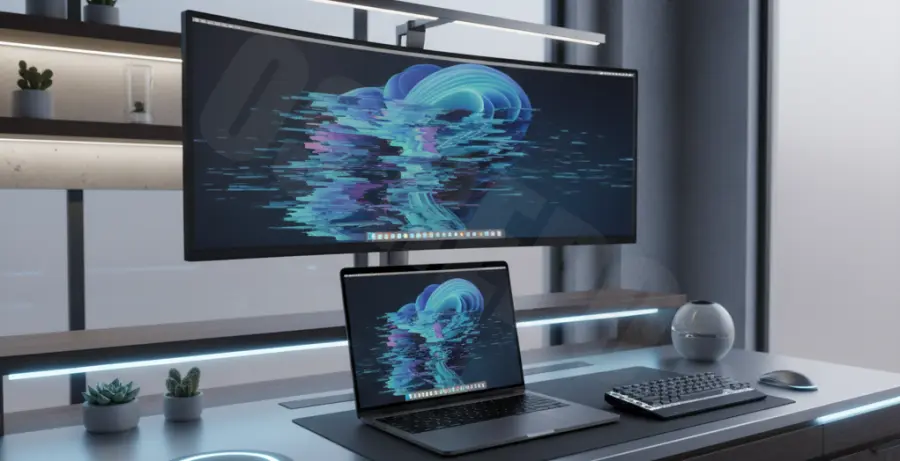
The screen flickering in macOS Sequoia on Apple Silicon typically stems from the way the OS manages the Display Controller (DCN) and Unified Memory. When Sequoia attempts to transition between different power states, the handshake between the GPU and the display panel can desynchronize.
On M-series chips, the ProMotion technology dynamically scales the refresh rate. In early builds of Sequoia, the Variable Refresh Rate (VRR) logic may struggle with specific high-dynamic-range (HDR) content or external monitor configurations, leading to the rapid strobing effect observed by users.
| Flicker Type | Probable Root Cause | Affected Models |
|---|---|---|
| Rapid Strobe | ProMotion Synchronization Failure | MBP M1/M2/M3 Max |
| Subtle Dimming | True Tone / Ambient Light Sensor Bug | All Apple Silicon |
| External Display Glitch | DisplayPort/HDMI Handshake Error | Mac Mini / Studio |
Alternative Methods
Adjust Refresh Rate Settings
If the immediate fix fails, locking your refresh rate can stabilize the display. Go to System Settings > Displays. If you are using a ProMotion display, try changing the refresh rate from “ProMotion” to a fixed “60 Hertz” to see if the flickering stops.
Disable True Tone and Night Shift
In some instances, the flickering is caused by the system rapidly trying to adjust the white balance. Disabling True Tone and Night Shift in the Display settings can help isolate whether the issue is related to the ambient light sensor’s software processing.
Safe Mode Diagnostics
To determine if a third-party kernel extension is causing the conflict, boot into Safe Mode. Shut down your Mac, then press and hold the Power button until “Loading startup options” appears. Select your disk, hold the Shift key, and click “Continue in Safe Mode.”