| Issue | Common Cause | Recommended Fix |
|---|---|---|
| Rapid Battery Drop | Background Indexing | Keep charger connected for 24-48 hours. |
| High CPU % | Incompatible Apps | Update or reinstall third-party software. |
| Fan Overactivity | Spotlight/Photos Sync | Monitor “mds_stores” in Activity Monitor. |
| System Lag | Corrupt Cache | Boot into Safe Mode to clear system cache. |
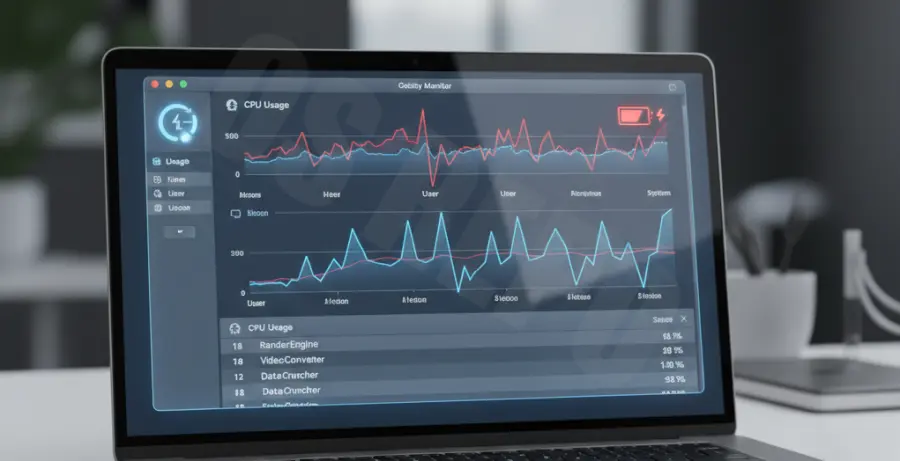
What is macOS Sequoia high CPU usage battery drain?
macOS Sequoia high CPU usage battery drain refers to a significant spike in processor activity and power consumption following the installation of Apple’s latest operating system. Users often report their Mac running hot and losing battery percentage rapidly even while idle.
This phenomenon typically occurs due to background optimization tasks. After a major update, macOS Sequoia re-indexes your files for Spotlight and re-scans your Photos library to power new AI-driven features. This consumes significant CPU cycles.
However, it can also be caused by outdated third-party kernel extensions or launch agents that are not yet optimized for Sequoia’s new architecture. If the drain persists after 48 hours, it usually indicates a software conflict rather than standard maintenance.
Step-by-Step Solutions
1. Identify Resource-Hogging Processes
Open Activity Monitor to see exactly which apps are consuming your battery. Sort the list by the “% CPU” column to find the culprits.
- Press Cmd + Space and type “Activity Monitor”.
- Click the CPU tab.
- Look for processes like
mds_stores(Spotlight) orphotoanalysisd(Photos).
2. Check for Background Indexing
If you see mds or mdworker at the top of your list, macOS is indexing your drive. You can check the status of Spotlight indexing with this command:
sudo mdutil -s /If indexing is active, the best solution is to leave your Mac plugged into power overnight to let it complete the process.
3. Update Third-Party Apps and Extensions
Many “Battery Drain” issues are caused by apps that haven’t been patched for Sequoia. Check the App Store for updates or the developer’s website for “Sequoia Compatibility” notes.
Pay close attention to VPNs, Antivirus software, and system utilities, as these often hook deeply into the kernel and cause high CPU cycles when incompatible.
4. Reset System Background Items
Sometimes, login items from previous macOS versions conflict with Sequoia’s new security permissions. Disabling them can stop the drain.
- Go to System Settings > General > Login Items.
- Remove unnecessary apps from “Open at Login”.
- Toggle off non-essential apps under “Allow in the Background”.
5. Use Terminal to Find Energy Wasters
You can use the pmset command to see exactly what is preventing your Mac from sleeping or consuming excess power.
pmset -g assertionsLook for “PreventUserIdleSystemSleep” to find the specific PID (Process ID) that is keeping your CPU awake and draining your battery.