| Action Step | Primary Objective | Expected Time |
|---|---|---|
| Enter Safe Mode | Isolate 3rd-party software from OS | 2 Minutes |
| Observation Phase | Identify if flicker persists in clean state | 5-10 Minutes |
| ADB Debugging | Pull system logs for display errors | 5 Minutes |
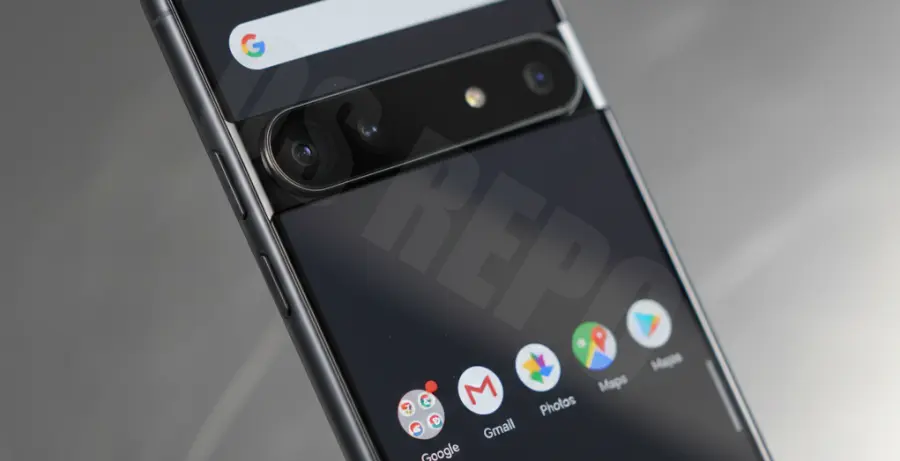
What is Pixel 9 Screen Flickering Safe Mode Test?
The pixel 9 screen flickering safe mode test is a diagnostic environment used to troubleshoot display stability. It forces the Android operating system to load without any third-party applications.
This test is crucial for determining if your screen issues are caused by a hardware defect or a software conflict. If the flickering stops in Safe Mode, a downloaded app is likely the culprit.
For Pixel 9 users, this is the first line of defense before seeking a warranty replacement. It narrows down the root cause by stripping the OS to its core components.
Step-by-Step Solutions
1. How to Boot Pixel 9 into Safe Mode
To start the test, you must bypass your standard boot sequence. Follow these steps carefully:
- Press and hold the Power and Volume Up buttons simultaneously.
- When the power menu appears, long-press the Power off or Restart icon.
- A prompt will appear asking if you want to “Reboot to safe mode.” Tap OK.
- Your device will restart, and you will see a “Safe mode” watermark in the bottom-left corner.
2. Monitoring the Display Performance
Once in Safe Mode, use the phone as you normally would for 10 minutes. Navigate through the settings and the notification shade.
If the flickering continues, the issue is likely a hardware fault with the OLED panel or the display connector. If the flickering vanishes, you must identify which app is causing the graphical glitch.
3. Using ADB to Inspect Surface Flings
Technical users can use the Android Debug Bridge (ADB) to check for frame drops or rendering errors while in the test environment. Run the following command via your terminal:
# Check for display surface latency and rendering errors
adb shell dumpsys SurfaceFlinger --latency
Analyze the output for irregular spikes that coincide with visual flickering. This data is helpful when submitting a support ticket to Google.
4. Exiting Safe Mode and Cleanup
To exit the test, simply restart your Pixel 9 normally. If the test proved that an app was the cause, start by uninstalling recently installed apps or those with “Overlay” permissions, such as blue light filters or custom launchers.