Symptoms & Diagnosis
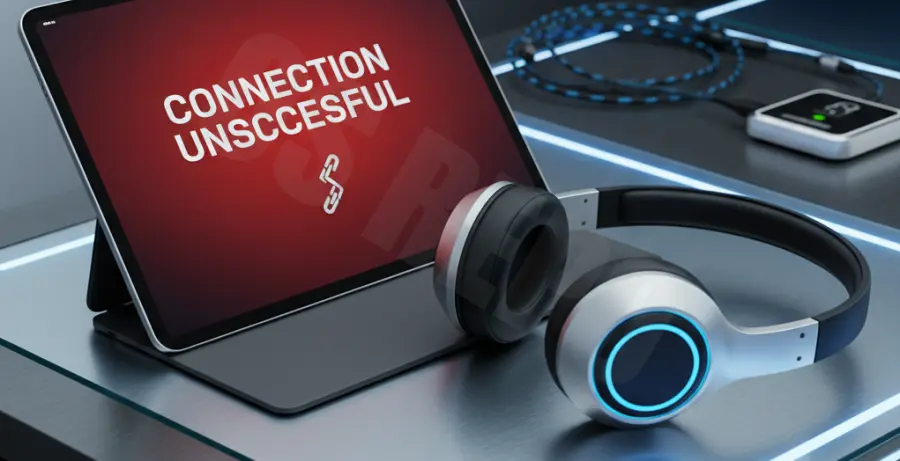
Bluetooth pairing failures on the iPad Pro typically manifest as persistent “Searching” animations or immediate “Connection Unsuccessful” pop-ups. Users often notice that the headphones appear in the list but refuse to establish a handshake.
To diagnose the issue, determine if the failure is device-specific. If your headphones connect to a smartphone but not the iPad Pro, the issue likely resides in the iPad’s Bluetooth stack or current iPadOS network configuration.
| Symptom | Possible Root Cause | Severity |
|---|---|---|
| Continuous Spinning Wheel | Signal interference or background process hang | Low |
| “Pairing Took Too Long” | Corrupted pairing cache in iPadOS | Medium |
| Device Not Found | Hardware radio failure or discovery mode inactive | High |
Troubleshooting Guide
Start with a “Soft Reset” of the Bluetooth module. Navigate to Settings > Bluetooth, toggle the switch OFF, wait ten seconds, and toggle it back ON. This restarts the discovery daemon without affecting other system settings.
If the connection still fails, you must clear the existing device profile. Tap the “i” icon next to your headphone’s name and select “Forget This Device.” This forces a fresh exchange of security keys during the next pairing attempt.
Resetting the Network Stack
Persistent pairing errors often stem from corrupted network configuration files. Performing a “Reset Network Settings” clears Bluetooth caches, Wi-Fi passwords, and VPN configurations. This is often the definitive fix for iPad Pro Bluetooth handshake errors.
# Note: On iPadOS, this logic is handled via UI,
# but technical logs would reflect:
system-control --restart com.apple.bluetoothd
rm -rf /Library/Preferences/com.apple.Bluetooth.plist
Force Restarting iPad Pro
For modern iPad Pro models (without a Home button), quickly press and release the Volume Up button, then the Volume Down button, and finally hold the Top button until the Apple logo appears. This clears the system RAM and kills any zombie processes interfering with the Bluetooth radio.
Prevention
Ensure your iPad Pro is running the latest version of iPadOS. Apple frequently releases “point” updates (e.g., 17.x.x) that specifically address wireless stability and hardware compatibility with third-party peripherals.
Minimize 2.4GHz interference by moving away from microwave ovens or unshielded USB-C hubs. High-speed data transfer through poorly shielded hubs can create electromagnetic noise that disrupts the sensitive Bluetooth antenna located near the iPad’s top edge.
Lastly, check the battery health of your headphones. Many Bluetooth chipsets enter a “low power mode” when below 10% battery, which can cause them to broadcast a discovery signal that is too weak for the iPad Pro to lock onto consistently.