Immediate Fix: Enrolling the MOK or Disabling Secure Boot
The fastest way to resolve the Ubuntu 24.04 “Secure Boot Violation” is to enroll the Machine Owner Key (MOK) or temporarily disable Secure Boot in your UEFI/BIOS settings. This error typically occurs because the system firmware does not recognize the signature of the updated Linux kernel.
Method 1: Enroll MOK (Recommended)
If you see a blue screen titled “Perform MOK management” after a reboot, follow these steps to authorize the new kernel signature:
- Select Enroll MOK from the menu.
- Select Continue.
- Select Yes to enroll the keys.
- Enter the password you created during the driver installation (if applicable).
- Select Reboot.
Method 2: Disable Secure Boot via BIOS
If the system is stuck and won’t boot, you can bypass the check entirely. Use the table below to find your BIOS entry key based on your hardware manufacturer:
| Manufacturer | BIOS/UEFI Hotkey |
|---|---|
| Dell / Alienware | F2 or F12 |
| HP | F10 or Esc |
| Lenovo | F2 or Fn + F2 |
| ASUS | F2 or Del |
| Acer | F2 or Del |
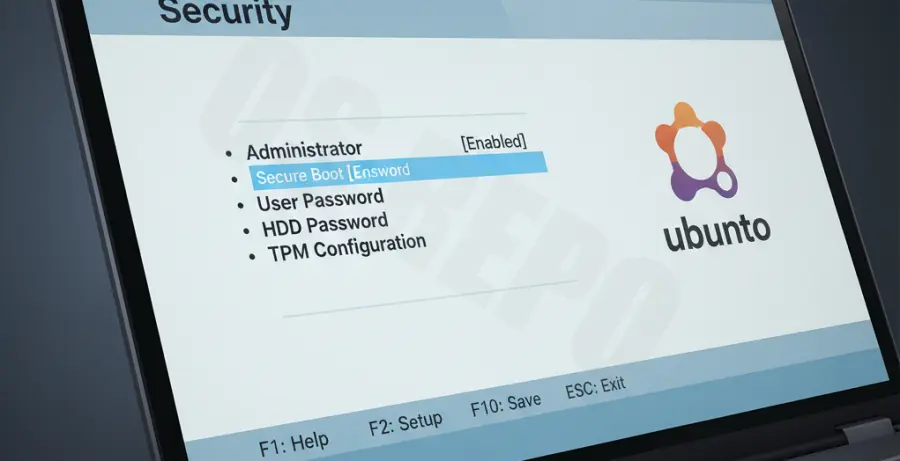
Once inside the BIOS, navigate to the Security or Boot tab, find Secure Boot, and set it to Disabled. Save and exit to boot into Ubuntu 24.04.
Technical Explanation: Why the Blue Screen Happens
The Ubuntu 24.04 “Noble Numbat” Secure Boot Violation is usually triggered by a mismatch between the Shim bootloader and the UEFI firmware. Secure Boot is a security standard designed to ensure that a device boots using only software that is trusted by the Original Equipment Manufacturer (OEM).
When Ubuntu updates its kernel or third-party drivers (like NVIDIA), it uses a Machine Owner Key (MOK) to sign these binaries. If the signature isn’t enrolled in the system’s NVRAM, the UEFI firmware flags the boot process as a security breach, resulting in the dreaded blue screen.
This issue is more common in Ubuntu 24.04 due to stricter enforcement of kernel lockdown modes and updated shim-signed packages that require manual user intervention to trust new certificates.
Alternative Methods: Fixing via Terminal
If you can access the terminal (via Recovery Mode or a Live USB), you can manually reconfigure the shim-signed package or update your GRUB configuration to resolve the conflict.
Reinstall Shim-Signed
Run the following commands to ensure your bootloader packages are correctly installed and signed:
sudo apt update
sudo apt install --reinstall shim-signed grub-efi-amd64-signed
sudo update-grub
Reset MOK Configuration
If the MOK enrollment failed previously, you can force the system to prompt you again on the next boot by resetting the MOK utility state:
sudo mokutil --reset
sudo reboot
After rebooting, the blue MOK management screen will reappear, allowing you to properly enroll the necessary keys for Ubuntu 24.04 to boot securely.