Symptoms & Diagnosis
Updating to iOS 18 has introduced a frustrating bug for many users: the alarm triggers visually, but no audio plays. This can lead to missed appointments and disrupted schedules.
Common symptoms include the iPhone screen lighting up with the alarm interface while remaining completely silent. In some cases, only the haptic vibration functions, or the volume starts at a normal level and immediately drops to an inaudible whisper.
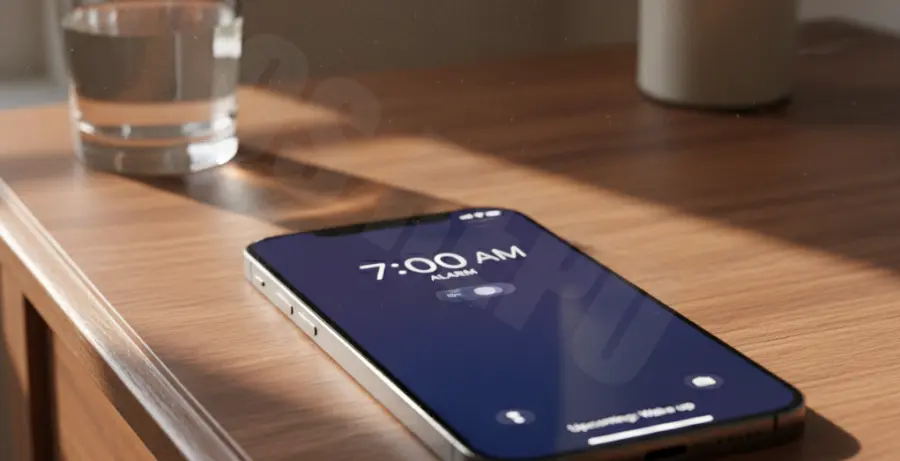
To diagnose the issue, you must distinguish between hardware failure and software configuration. If your media plays sound but the alarm does not, the issue is likely rooted in the “Attention Aware” features or a corrupted “Clock” app cache within the new OS architecture.
Troubleshooting Guide
Before moving to advanced steps, verify your basic ringer settings. Unlike media volume, the alarm volume is often tied to the “Ringer and Alerts” slider located in the Sounds & Haptics menu.
| Feature | Recommended Status | Reason |
|---|---|---|
| Attention Aware | OFF | Prevents volume lowering when the phone thinks you are looking at it. |
| Change with Buttons | ON | Allows physical control over the alarm alert level. |
| Silent Mode | OFF/ON | Alarms should bypass this, but toggling it can refresh the audio driver. |
Disable Attention Aware Features
This is the most frequent culprit in iOS 18. The TrueDepth camera may incorrectly detect eye contact and dim the alarm volume instantly. Navigate to Settings > Face ID & Passcode and toggle off Attention Aware Features.
Reset System Audio Drivers
Sometimes the background daemon responsible for handling scheduled alerts hangs. While you cannot access the kernel directly, you can force a reset of the settings configuration via the UI.
# Simulated path for internal system reset
Settings -> General -> Transfer or Reset iPhone -> Reset -> Reset All Settings
Verify Sleep/Wake Schedule
If you use the Health app’s “Sleep Schedule,” it may override individual alarms in the Clock app. Check if “Sleep Focus” is suppressing sounds or if the “Wake Up” alarm volume is set to zero independently of your system ringer.
Prevention
To prevent future silent alarms on iOS 18, avoid using custom songs from third-party apps that may not have updated their DRM permissions for the new OS. Stick to default system tones for mission-critical alerts.
Regularly check for “Point Releases.” Apple often patches audio driver bugs in sub-versions like iOS 18.0.1 or 18.1. Keeping your device updated ensures you have the latest fixes for the CoreAudio framework.
Finally, perform a weekly “soft reset” (Volume Up, Volume Down, then hold Power) to clear the system cache. This simple maintenance task prevents the background “Clock” process from becoming unresponsive over long periods of uptime.