| Issue | Probable Root Cause | Recommended Solution |
|---|---|---|
| Silent Crash to Desktop (CTD) | Multi-Plane Overlay (MPO) Interference | Disable MPO via Windows Registry |
| Driver Timeout | Corrupt Shaders or Driver Conflict | Clean Uninstall using DDU |
| Sudden Closing (No Log) | TDR (Timeout Detection and Recovery) | Increase TDR Delay in Registry |
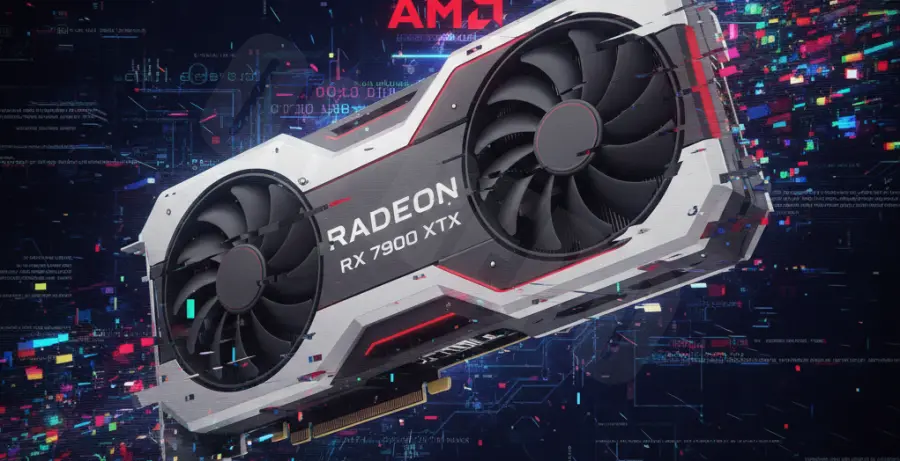
What is the AMD GPU Crash to Desktop with No Error Message?
An AMD GPU crash to desktop (CTD) without an error message occurs when a game or application suddenly closes, returning the user to the Windows desktop environment instantly. Unlike “Driver Timeout” errors, these silent crashes leave no notification or log entry in the Radeon Software interface.
This phenomenon typically stems from a conflict between the AMD Adrenalin drivers and Windows background processes. It is frequently linked to power management features, Multi-Plane Overlay (MPO) bugs, or aggressive factory overclocks on RX 5000, 6000, and 7000 series cards.
Step-by-Step Solutions
1. Disable Multi-Plane Overlay (MPO)
MPO is a common culprit for stuttering and silent crashes on AMD hardware. Disabling it often stabilizes the driver immediately.
# Manual Registry Path for MPO
HKEY_LOCAL_MACHINE\SOFTWARE\Microsoft\Windows\Dwm
"OverlayTestMode"=dword:00000005
You can also use the official NVIDIA/AMD MPO Tool (registry (.reg) files) to automate this process. Restart your PC after applying the change.
2. Perform a Clean Driver Install (DDU Method)
Standard uninstalls often leave behind remnant files that cause conflicts. Using Display Driver Uninstaller (DDU) ensures a clean slate.
- Download the latest AMD Adrenalin drivers.
- Download DDU and boot Windows into Safe Mode.
- Run DDU and select “Clean and restart.”
- Install the downloaded AMD driver package once back in normal Windows.
3. Increase TDR Delay
Windows attempts to reset the GPU if it doesn’t respond within 2 seconds. If a shader takes longer to load, the game crashes. Increasing this window can prevent silent exits.
# Add TdrDelay to Registry
Path: HKEY_LOCAL_MACHINE\SYSTEM\CurrentControlSet\Control\GraphicsDrivers
Value Name: TdrDelay
Value Type: REG_DWORD
Value Data: 8 (Decimal)
4. Adjust Radeon Software Settings
Certain “Enhancement” features are known to trigger instability in specific API environments (DirectX 12 or Vulkan). Try disabling these settings in the Adrenalin UI:
- Radeon Anti-Lag: Set to Disabled.
- Radeon Boost: Set to Disabled.
- Enhanced Sync: This is a frequent cause of CTD; turn it off.
- Overlay: Disable the In-Game Overlay in the Preferences tab.
5. Check Power Supply and Cables
AMD cards are sensitive to transient power spikes. Ensure you are using two separate PCIe power cables from your PSU rather than a single “daisy-chain” pigtail cable. This ensures stable voltage delivery during high-load gaming sessions.