Symptoms & Diagnosis
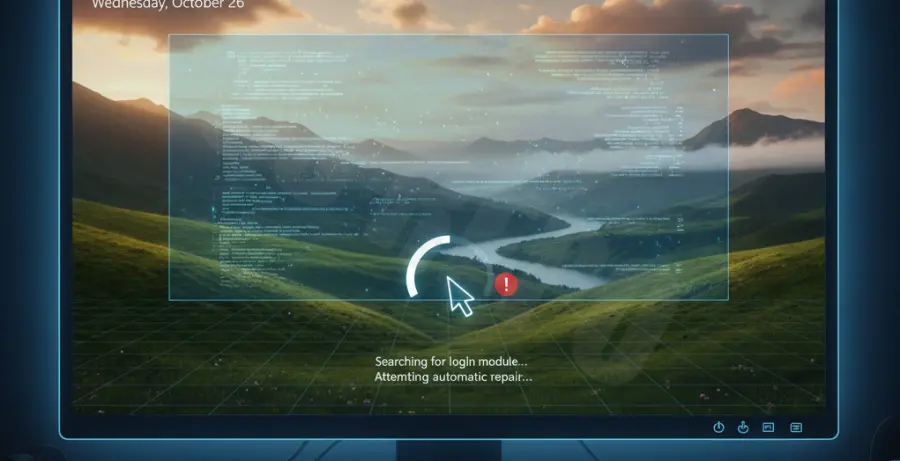
The “missing login box” on Windows 10 is a frustrating glitch where the lock screen background appears, but the password input field, user icons, and power options are completely absent. This usually occurs after a system update, a forced shutdown, or a conflict with third-party lock screen software.
Common symptoms include the inability to type anything, the mouse cursor being visible but unresponsive to clicks, or the screen getting stuck on the blurred background image. In some cases, pressing the “Enter” key or clicking the mouse fails to trigger the transition to the login prompt.
Diagnosis typically points to a hung process (like the Windows Shell Experience Host), corrupted system files, or a failure in the “Fast Startup” feature that prevents the UI from loading correctly. Identifying whether the keyboard is responsive (e.g., checking the Caps Lock light) is the first step in determining if the OS is frozen or just the UI.
Troubleshooting Guide
Method 1: The CTRL + ALT + DELETE Reset
Sometimes the login UI process is simply stuck. This keyboard shortcut can force the system to refresh the interface and bring back the login box.
- On the blank lock screen, press Ctrl + Alt + Delete simultaneously.
- Wait a few seconds for the system to process the interrupt.
- If successful, the password field should reappear immediately.
Method 2: Safe Mode with Command Prompt
If a hard reset doesn’t work, you must access the Windows Recovery Environment (WinRE) to repair system files. This is the most effective way to handle the “repair windows 10 login screen no box” issue.
- Hold the Shift key while clicking the Power icon and selecting Restart. (If no icon is visible, force restart three times to trigger Automatic Repair).
- Go to Troubleshoot > Advanced options > Startup Settings > Restart.
- Press 6 or F6 to enable Safe Mode with Command Prompt.
Once the Command Prompt opens, run the System File Checker to repair the UI components:
sfc /scannow
dism /online /cleanup-image /restorehealth
Method 3: Comparison of Recovery Options
The following table outlines the different recovery paths available if the login box remains missing:
| Method | Best For | Data Risk |
|---|---|---|
| Startup Repair | Automatic boot fixes | Low |
| System Restore | Reverting recent updates | Low |
| Registry Edit | Disabling Fast Startup | Medium |
| Reset This PC | Severe system corruption | High |
Method 4: Disable Fast Startup
Fast Startup can cause the kernel to save an error state into the hibernation file, which is then reloaded during every boot. Disabling this can force a fresh, clean login screen.
- In Safe Mode, open the Control Panel.
- Navigate to Hardware and Sound > Power Options.
- Click Choose what the power buttons do.
- Uncheck Turn on fast startup (recommended).
- Save changes and restart normally.
Prevention
To prevent the login box from disappearing again, ensure that your Windows 10 installation is kept up to date. Updates often contain patches for the Windows Shell Experience Host, which manages the lock screen UI.
Avoid using third-party “Lock Screen Customizers” as these frequently break during Windows version upgrades. Additionally, regularly creating a System Restore point ensures you can roll back to a functional state without losing your personal files if the UI fails again.