Immediate Fix
If you are locked out of your macOS Sequoia login screen, the fastest solution is the Apple ID Reset method. This feature is integrated into the login window and works if you previously linked your user account to your iCloud credentials.
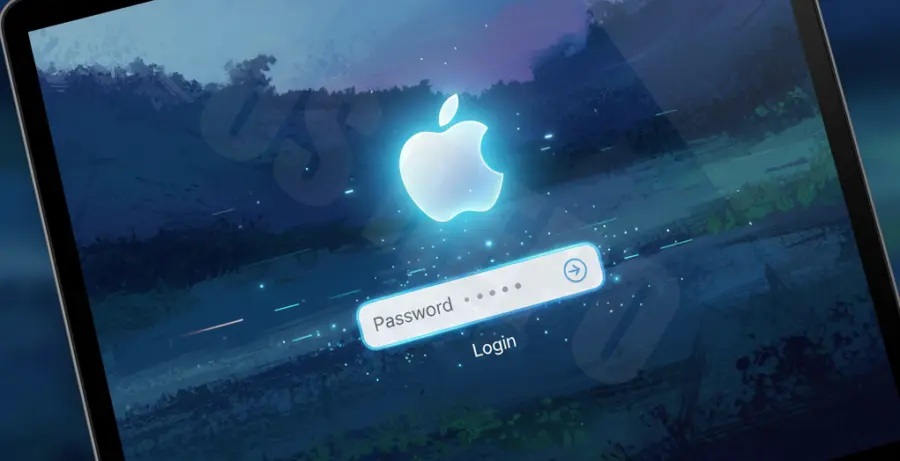
To trigger this, enter an incorrect password three times consecutively. A prompt will appear stating, “If you forgot your password, you can reset it using your Apple ID.” Click the arrow icon to begin the process.
| Method | Requirements | Success Rate |
|---|---|---|
| Apple ID Reset | Active Internet & Linked iCloud | High |
| Recovery Key | FileVault Enabled & Key Saved | High |
| Terminal Reset | Access to Recovery Mode | Medium |
Follow the on-screen instructions to enter your Apple ID and password. Once authenticated, macOS Sequoia will allow you to create a new login password and unlock your FileVault-encrypted volume.
Technical Explanation
macOS Sequoia utilizes advanced APFS (Apple File System) volume encryption managed by FileVault. When you are at the login screen, you are actually interacting with a pre-boot environment. The system remains encrypted until the correct key—your password—is provided.
The “bypass” is not a security flaw but a recovery path. If you have administrative access or recovery keys, the system allows the Secure Enclave to release the decryption keys to the boot volume. You can check your current disk encryption status via the Terminal to understand why a simple bypass isn’t possible without authentication.
fdesetup statusThis command reveals if FileVault is active. If active, data is inaccessible without the master password or a recovery key. macOS Sequoia enhances this security by requiring secondary authentication through the Apple T2 or Silicon security chips.
Alternative Methods
1. Using Terminal in Recovery Mode
If the Apple ID method fails, boot into Recovery Mode. For Intel Macs, hold Command+R during startup. For Apple Silicon (M1/M2/M3), hold the Power button until “Loading startup options” appears.
Once in Recovery, navigate to Utilities > Terminal and enter the following command to launch the Password Reset tool:
resetpasswordA GUI window will open. Select “I forgot my password” and follow the prompts to select your volume and reset the account credentials.
2. The Recovery Key Bypass
If you opted for a Recovery Key when setting up FileVault, select “Reset using Recovery Key” at the login screen. This is a 24-character alphanumeric code. It bypasses the need for an Apple ID or old password entirely.
3. Remote Wipe via Find My
As a last resort, if you cannot bypass the login screen and need to reuse the machine, use another device to log into iCloud.com. Locate your Mac in “Find My” and select “Erase Mac.” This will remove the login lock but will also delete all local data.