Immediate Fix: Force Restart and Recovery Mode
If your iPhone 16 Pro is stuck on a black screen, the first step is to initiate a Force Restart. This hardware-level trigger cuts power temporarily to the logic board to clear stuck processes.
Quickly press and release the Volume Up button. Quickly press and release the Volume Down button. Finally, press and hold the Side Button.
Continue holding the Side Button even if the screen remains black. If the software is responsive, the Apple logo will appear. If it does not, you must enter Recovery Mode.
Entering Recovery Mode Manually
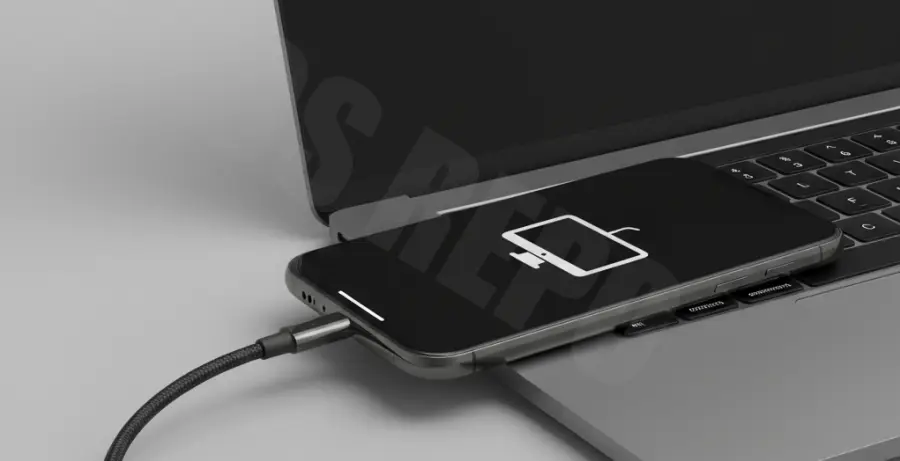
Connect your iPhone 16 Pro to a Mac or PC using a high-quality USB-C cable. Open Finder or iTunes. Perform the Force Restart sequence mentioned above, but do not let go of the Side Button when you see the Apple logo.
Keep holding the Side Button until you see the “Support” screen showing a computer icon and a cable. Your computer will then prompt you to “Update” or “Restore” the device.
Technical Explanation
A black screen on the iPhone 16 Pro often indicates a “Springboard” crash or a kernel panic where the display driver fails to initialize. This state is known as a “Black Screen of Death.”
Because the iPhone 16 Pro utilizes the A18 Pro chip, the boot sequence is tightly integrated with the Secure Enclave. If a firmware update for iOS 18 fails, the Secure Enclave may prevent the display from turning on to protect user data.
Recovery Mode bypasses the corrupted OS partition and loads a secondary “iBSS” (Integrated Boot Stage 2) via the USB connection, allowing the device to accept a clean firmware image (IPSW).
Alternative Methods
If standard Recovery Mode fails, you may need to utilize DFU (Device Firmware Update) mode or third-party CLI tools. DFU mode is the deepest level of restore as it does not load the iBoot bootloader.
Below is a comparison of the primary restoration methods available for technical users:
| Method | Depth | Data Impact |
|---|---|---|
| Force Restart | Software Reset | None (Safe) |
| Recovery Mode | Bootloader Level | Possible Loss |
| DFU Mode | Hardware/Firmware | Total Wipe |
For advanced users on macOS, you can verify the device’s connection status via the Terminal to ensure the USB handshake is successful before attempting a flash:
# Check if iPhone 16 Pro is detected in Recovery/DFU mode
system_profiler SPUSBDataType | grep -i "iPhone"
If the device is still not recognized, check for hardware failure in the OLED panel or the display connector. If the phone vibrates but the screen remains black even in Recovery Mode, it is likely a hardware-related “Display Engine” failure requiring professional repair.