Immediate Fix
To fix a microphone not working on Windows Server 2022 via RDP, you must first enable audio recording redirection on your local client and the server services.
On your local Windows machine, open Remote Desktop Connection (mstsc.exe). Click Show Options, navigate to the Local Resources tab, and click Settings under Remote audio.
Select Record from this computer and click OK. This ensures the client sends the audio signal to the server session.
Next, log into your Windows Server 2022 and ensure the audio services are running. Open an elevated Command Prompt and run the following commands:
net start Audiosrv
net start AudioEndpointBuilder
sc config Audiosrv start= auto
sc config AudioEndpointBuilder start= auto| Requirement | Setting |
|---|---|
| Client Setting | Record from this computer |
| Server Service | Windows Audio (Started) |
| Server Feature | Remote Desktop Session Host |
Technical Explanation
Windows Server 2022 disables audio redirection by default to save bandwidth and improve security. Unlike desktop versions of Windows, the Server edition treats audio input as a resource-heavy peripheral.
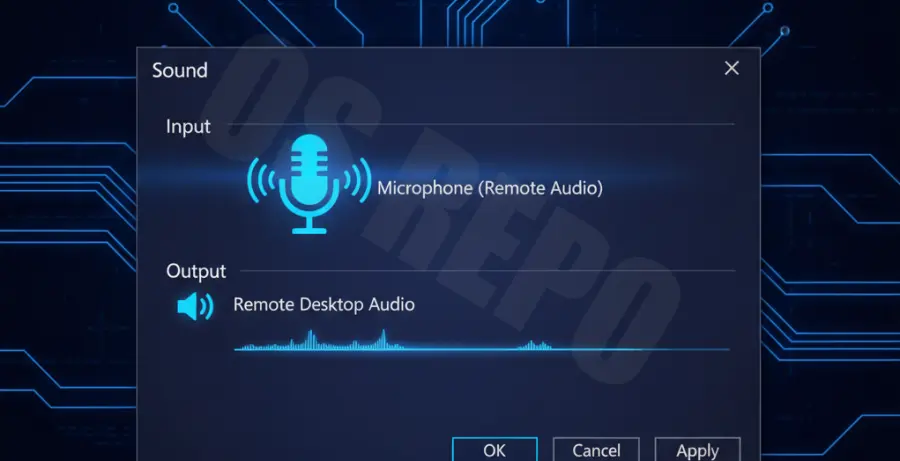
The RDP protocol uses a specific virtual channel for audio. If the “Windows Audio” service is disabled on the server, the virtual device “Remote Audio” will not appear in the sound settings, even if the client is configured correctly.
Furthermore, Group Policy Objects (GPO) often override local settings. If the server is part of an Active Directory domain, the administrator may have explicitly disabled “Allow audio and video playback redirection” or “Allow audio recording redirection.”
Alternative Methods
Method 1: Using Group Policy Editor
If the service is running but the microphone still doesn’t work, you must check the local Group Policy on the Windows Server 2022 machine.
1. Press Win + R, type gpedit.msc, and hit Enter.
2. Navigate to: Computer Configuration > Administrative Templates > Windows Components > Remote Desktop Services > Remote Desktop Session Host > Device and Resource Redirection.
3. Double-click Allow audio recording redirection and set it to Enabled.
Method 2: Registry Editor Fix
In cases where GPO is not responding, you can manually toggle the redirection key via the Windows Registry.
reg add "HKEY_LOCAL_MACHINE\SYSTEM\CurrentControlSet\Control\Terminal Server\WinStations\RDP-Tcp" /v fDisableAudioCapture /t REG_DWORD /d 0 /fAfter applying these changes, you must sign out of your RDP session and log back in for the “Remote Audio” input device to appear in your sound settings.