| Issue Type | Primary Solution | Success Rate |
|---|---|---|
| Intermittent Drops | Disable Private WiFi Address | High |
| Slow Upload/Download | Reset Network Settings | Medium |
| Authentication Errors | Forget and Rejoin Network | High |
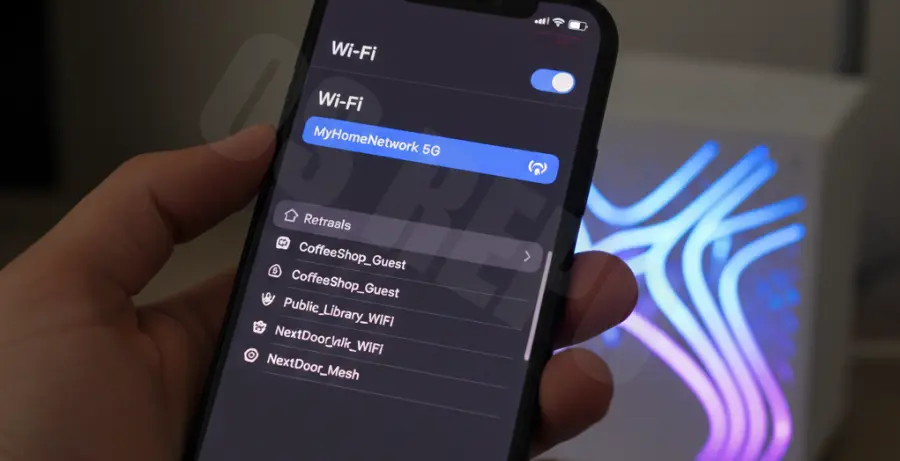
What are iPhone 16 Pro WiFi issues?
iPhone 16 Pro WiFi issues refer to connectivity problems specifically affecting Apple’s latest flagship model. These problems often manifest as frequent disconnections, inability to find 5GHz or 6GHz bands, or “No Internet Connection” errors despite a working router.
For many users, these drops occur because of conflicts between the new WiFi 7 hardware in the iPhone 16 Pro and older router firmware. It can also be caused by software bugs in the initial release of iOS 18.
Step-by-Step Solutions to Fix WiFi Drops
1. Toggle Private WiFi Address
The Private WiFi Address feature can sometimes confuse routers that use MAC filtering. To fix this, go to Settings > WiFi and tap the “i” icon next to your network. Toggle “Private WiFi Address” to Off and reconnect.
2. Reset Network Settings
This is the most effective way to clear corrupted cache files related to connectivity. Note that this will delete all saved WiFi passwords on your device.
# Technical Note: Resetting the network stack clears the following:
# 1. Saved WiFi Networks and Passwords
# 2. VPN and APN Settings
# 3. Bluetooth Pairing History
To perform this, navigate to Settings > General > Transfer or Reset iPhone > Reset > Reset Network Settings. Your iPhone 16 Pro will reboot automatically.
3. Update iOS to the Latest Version
Apple frequently releases “Point” updates (like iOS 18.0.1 or 18.1) specifically to address hardware-software handshake bugs. Always ensure your device is on the latest build to benefit from updated network drivers.
4. Disable iCloud Private Relay
iCloud Private Relay can cause latency and connection drops if the Apple relay servers are congested. Go to Settings > [Your Name] > iCloud > Private Relay and turn it off temporarily to see if stability improves.
5. Forget the Network and Rejoin
Sometimes the handshake between the iPhone 16 Pro and the router becomes stale. Tap the “i” next to your WiFi network name and select “Forget This Network.” Wait 30 seconds, then select the network again and re-enter your password.