Immediate Fix
If your iPhone 16 Pro is experiencing sudden WiFi drops or poor range, the most effective immediate solution is a Network Settings Reset. This clears out corrupted cache files and refreshes the handshake between your device and the router.
To do this, navigate to Settings > General > Transfer or Reset iPhone > Reset > Reset Network Settings. Note that this will remove saved WiFi passwords, so ensure you have them handy.
| Action | Success Rate | Data Loss |
|---|---|---|
| Toggle Airplane Mode | Low | None |
| Reset Network Settings | High | WiFi Passwords |
| Factory Reset | Moderate | All Local Data |
After the reset, you can verify your connection stability by running a simple network diagnostic. Use a terminal emulator on your device or a Mac to check for packet loss:
# Check connection stability to Google DNS
ping -c 10 8.8.8.8
Technical Explanation
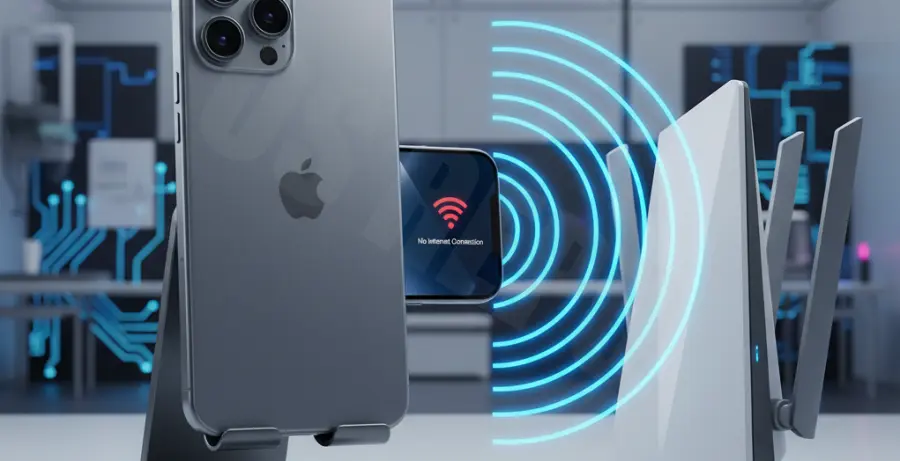
The iPhone 16 Pro utilizes the new WiFi 7 (802.11be) standard. While this offers significantly higher speeds, it is more sensitive to physical obstructions than older standards. High-frequency bands like 6GHz have shorter wavelengths, which struggle to penetrate thick walls.
Additionally, iOS 18 features aggressive power management for the new A18 Pro chip. In some instances, the system may throttle the WiFi radio’s power to conserve battery, leading to perceived “range drops” even when you are within a normal distance from the access point.
Software bugs in the initial iOS 18 release have also been linked to “Private WiFi Address” conflicts. This feature generates a rotating MAC address, which can confuse some mesh network routers, causing them to drop the connection during the handoff process.
Alternative Methods
If a network reset does not resolve the issue, try disabling the “Private WiFi Address” for your specific home network. Go to Settings > WiFi, tap the “i” next to your network name, and toggle off Private WiFi Address.
Adjust Router Frequency
Many users find stability by splitting their router bands. Instead of using a single SSID for 2.4GHz, 5GHz, and 6GHz, create separate names. Force your iPhone 16 Pro to the 5GHz band for a better balance of range and speed.
Disable Limit IP Address Tracking
Another common culprit is the iCloud Private Relay or IP tracking limits. Navigate to Settings > WiFi > [Your Network] and disable Limit IP Address Tracking. This reduces the processing overhead on the WiFi chip and can prevent frequent disconnections.
Finally, ensure your router firmware is up to date. Since the iPhone 16 Pro uses cutting-edge hardware, older router firmware may not correctly identify the device’s capabilities, leading to connectivity mismatches.