| Issue | Recommended Solution |
|---|---|
| Bluetooth Headset Not Detected | Enable “Nearby Devices” Permission in Android settings. |
| Audio Routing to Phone Speaker | Clear Slack App Cache and restart the Bluetooth service. |
| Microphone Not Working | Toggle “HFP” (Hands-Free Profile) in Bluetooth settings. |
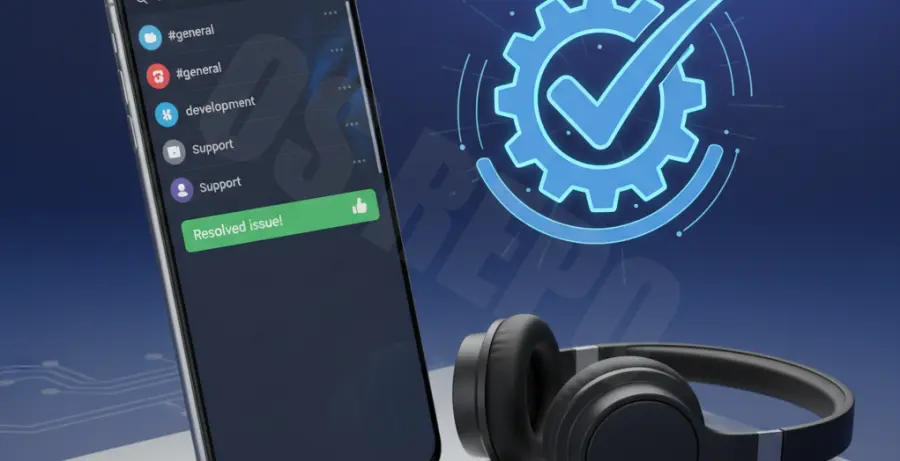
What is Slack Android Bluetooth Headset Fix?
The Slack Android Bluetooth headset fix refers to a set of troubleshooting procedures designed to resolve connectivity and audio routing issues between the Slack mobile app and wireless audio devices.
Commonly, users encounter “Bluetooth Pairing Failed” or situations where audio continues to play through the phone’s internal speakers despite a successful headset connection. These issues often stem from Android’s permission management or app-specific cache conflicts.
This fix ensures that Slack correctly recognizes external audio hardware, allowing for seamless huddles and voice calls on mobile devices.
Step-by-Step Solutions
1. Grant “Nearby Devices” Permission
On Android 12 and higher, Slack requires the “Nearby Devices” permission to interact with Bluetooth hardware. Without this, the app will fail to route audio to your headset.
Open Settings > Apps > Slack > Permissions. Ensure that Nearby Devices is set to “Allow.”
2. Clear Slack App Cache
Corrupted temporary files can cause the app to ignore system-level audio changes.
Go to Settings > Storage > Apps > Slack and tap Clear Cache. For a deeper reset, use the following ADB command if you are a developer:
adb shell pm clear com.Slack3. Toggle Bluetooth Metadata and HFP
If your headset connects but the microphone remains inactive, the issue might be with the Bluetooth profile.
Unpair your headset from the Bluetooth menu. Re-pair it, and ensure that “Phone Calls” and “Media Audio” are both toggled on in the device settings menu.
4. Check Slack In-App Audio Settings
While in a Slack Huddle, tap the speaker icon in the top-right corner. Manually select your Bluetooth headset from the list of available output devices. Sometimes Android fails to switch the default output automatically.
5. Reset Network Settings
If the pairing continues to fail across multiple apps, the Android Bluetooth stack may need a reset.
Navigate to Settings > System > Reset options > Reset Wi-Fi, mobile & Bluetooth. Note that this will clear all saved Wi-Fi passwords and paired devices.