Symptoms & Diagnosis
The Galaxy S25 Ultra represents the pinnacle of mobile hardware, but software instability can still occur following a major OTA (Over-the-Air) update. Users experiencing these issues typically report “Crash to Desktop” (CTD) events where the system UI resets abruptly.
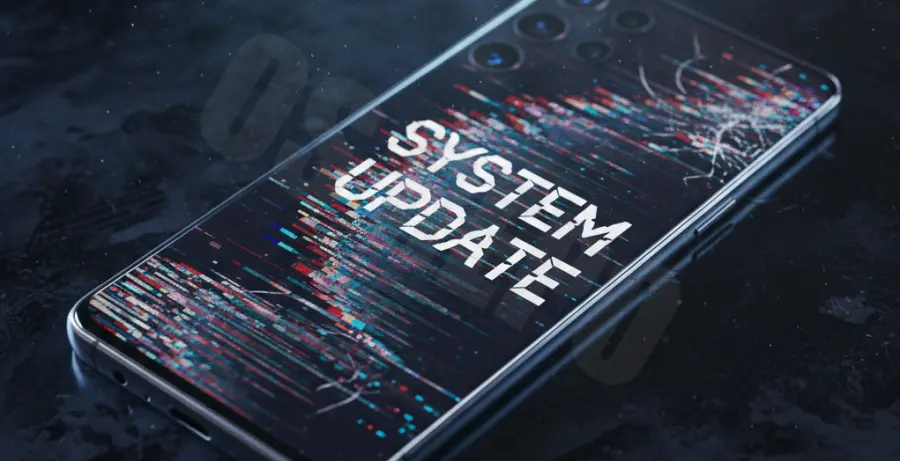
Common symptoms include the screen flickering briefly before returning to the lock screen, or apps closing without an error message. Diagnosis often points to corrupted system cache or a conflict between the new firmware and legacy app data.
Identifying the Root Cause
| Symptom | Probable Cause | Severity |
|---|---|---|
| System UI Not Responding | Cache Partition Conflict | Medium |
| Random Reboots | Kernel Panic / Firmware Bug | High |
| App Force Close | Incompatible APK Version | Low |
If your device feels warm during these crashes, it may be a background indexing process triggered by the update. However, persistent crashes to the home screen usually indicate a software handshake failure.
Troubleshooting Guide
Before attempting a factory reset, it is essential to clear the system’s temporary files. This is best achieved through the Android Recovery Menu.
Wipe Cache Partition
This process removes cluttered system files without deleting your personal data. It is the most effective fix for post-update instability.
1. Turn off the device.
2. Connect to a PC via USB-C.
3. Hold Volume Up + Power button.
4. Select "Wipe Cache Partition" using volume keys.
5. Confirm with the Power button.
6. Select "Reboot System Now".
Software Repair via ADB
If the UI remains unstable, you can attempt to reset the system interface settings via ADB (Android Debug Bridge) to clear hung processes.
adb shell pm trim-caches 32G
adb shell settings delete global system_ui_floating_windows
Additionally, ensure all Galaxy Store apps are updated. System components like the “One UI Home” launcher often receive patches immediately following a firmware rollout to address these exact crashing issues.
Prevention
Preventing future crashes on your Galaxy S25 Ultra involves maintaining a “clean” update environment. High-occupancy storage is a leading cause of update failures.
Always ensure you have at least 15% free storage space before initiating a system update. This provides the necessary “scratch space” for the OS to unpack and verify new files.
Lastly, avoid using third-party Good Lock modules immediately after a major version jump. These customization tools often require specific updates to align with new system APIs and can trigger desktop crashes if left unpatched.