Symptoms & Diagnosis
Is your iPad Pro starting to feel sluggish despite its powerful M-series chip? Even the most advanced hardware can suffer from performance degradation when temporary files accumulate over time.
Common symptoms of a bloated cache include delayed app launches, Safari tabs reloading unexpectedly, and interface lag when switching between multitasking windows.
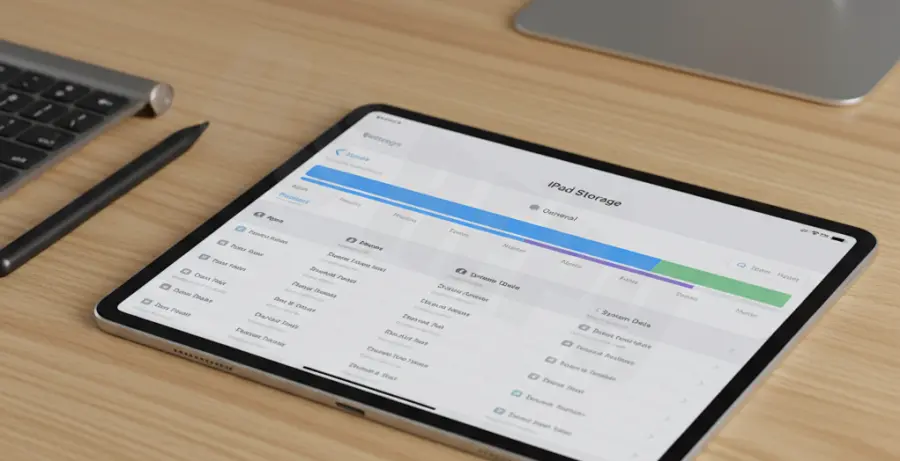
If you notice that “System Data” or “Other” storage is consuming a significant portion of your internal disk space, it is a clear sign that your device needs a cache cleanup to restore its original speed.
Troubleshooting Guide
Unlike macOS, iPadOS does not have a single “Clear All Cache” button. Instead, you must target specific areas where data accumulates most frequently.
Method 1: Clear Safari Browsing Data
Safari is the primary culprit for cache accumulation. It stores images, scripts, and cookies to speed up website loading, but these files eventually become redundant.
Go to Settings > Safari. Scroll down and tap Clear History and Website Data. Confirm the action to wipe the browser cache across all synced devices.
| Cache Type | Impact on Performance | Recommended Action |
|---|---|---|
| Safari Web Data | High | Clear Weekly |
| App Temp Files | Medium | Offload Unused Apps |
| System Logs | Low | Force Restart |
Method 2: Offload High-Usage Apps
If specific apps like YouTube, Instagram, or Netflix are running slowly, they may have an oversized local cache. iPadOS allows you to “Offload” an app, which deletes the application binary but keeps your personal data intact.
Navigate to Settings > General > iPad Storage. Select a large app and tap Offload App. Reinstalling it will provide a fresh, clean cache without losing your settings.
Method 3: Simulated System Purge
While you cannot access the iPad file system directly like a Linux machine, developers often use terminal environments to check storage overhead. Here is what a manual cache clearing script looks like in a simulated environment:
# Simulated cache directory cleanup
echo "Scanning for temporary system files..."
du -sh /private/var/mobile/Library/Caches/
rm -rf /private/var/mobile/Library/Caches/*
echo "System cache successfully purged."
For standard users, a Force Restart achieves a similar effect by flushing the RAM and temporary system buffers. Press and quickly release Volume Up, then Volume Down, then hold the Power button until the Apple logo appears.
Prevention
The best way to maintain iPad Pro performance is to prevent cache buildup before it impacts your workflow. Regularly updating iPadOS ensures that the system’s automatic garbage collection routines are optimized.
Limit the number of open tabs in Safari and periodically review your “iPad Storage” menu to identify apps that are ballooning in size. A proactive approach keeps your iPad Pro running at peak efficiency.