Symptoms & Diagnosis
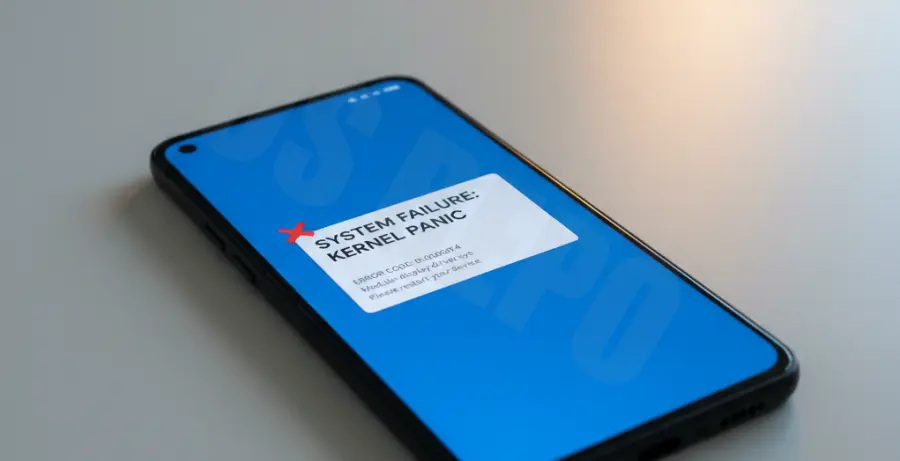
The Pixel 9 setup wizard crash typically manifests as a recurring error message stating “Android Setup keeps stopping” or a sudden freeze during the initial boot process.
Users often encounter this loop during the “Copy apps & data” phase or while connecting to a Wi-Fi network. This prevents the device from reaching the home screen, effectively soft-locking the phone.
| Symptom | Common Root Cause |
|---|---|
| Freeze at “Getting phone ready” | Network timeout or server-side Google sync error. |
| Crash during Data Transfer | Incompatible backup files from a previous OS version. |
| Infinite Loading Loop | Corrupt cache in the Google Play Services framework. |
Troubleshooting Guide
1. Perform an Offline Setup
The most effective fix for a crashing setup wizard is to bypass the internet connection. By skipping Wi-Fi and SIM activation, you prevent the device from trying to sync corrupt cloud data.
Restart the device, and when prompted to connect to a network, select “Set up offline.” You can sign into your Google account later via the Settings menu.
2. Clear Setup Wizard State via ADB
If you have access to a computer, you can use Android Debug Bridge (ADB) to force the setup wizard to complete or clear its stuck state. Connect your Pixel 9 and run the following command:
adb shell settings put global setup_wizard_has_run 1
adb shell settings put secure user_setup_complete 1
adb shell settings put global device_provisioned 1
3. Factory Reset via Recovery Mode
If the software package was corrupted during the initial unboxing update, a hardware-level factory reset is required. This wipes the temporary cache and restarts the installation script.
Turn off your Pixel 9. Press and hold Power and Volume Down simultaneously until the Fastboot menu appears. Navigate to “Recovery Mode” and select “Wipe data/factory reset.”
Prevention
To prevent future setup failures, ensure your Pixel 9 is charged to at least 50% before starting the installation. Fluctuations in power can cause the processor to throttle, leading to script timeouts.
Avoid transferring large amounts of data (over 100GB) during the initial wizard. Instead, complete the setup as a “New Device” and use the “Pixel Switch” app afterward for a more stable experience.
Always perform a system update immediately after reaching the home screen to patch known bugs in the Day 1 firmware.