| Issue | Common Cause | Quick Fix |
|---|---|---|
| Factory Reset Failed Error | Windows Update interference or corrupted driver files. | Use AMD Cleanup Utility in Safe Mode. |
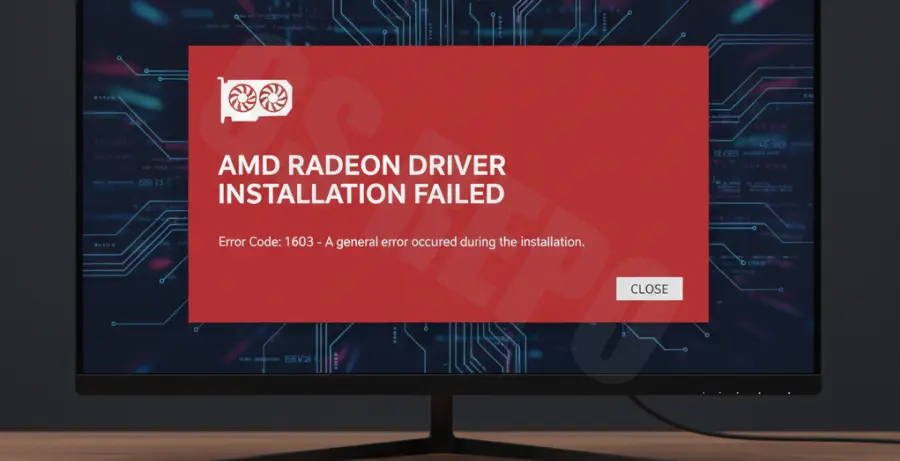
What is AMD Radeon Software Factory Reset Failed?
The “AMD Radeon Software Factory Reset Failed” error typically occurs when users attempt to update their graphics drivers. It specifically targets the “Factory Reset” option within the AMD installer.
This feature is designed to remove previous driver versions before installing new ones. When it fails, it leaves the system in a state where the new driver cannot be applied, often resulting in “Error 1603” or a generic failure message.
The primary reason for this failure is a conflict between the AMD installer and Windows Update. Windows often tries to automatically install a “generic” driver while the AMD tool is trying to clear the path, leading to a file lock or permission conflict.
Step-by-Step Solutions
1. Use the AMD Cleanup Utility
Instead of relying on the built-in factory reset option during the driver installation, use AMD’s standalone cleanup tool. This utility is more robust and removes all previous driver remnants.
Download the AMD Cleanup Utility from the official website. Run the application; it will prompt you to reboot into Safe Mode. Accept this and let the tool run its process automatically.
2. Disable Windows Driver Updates
To prevent Windows from interfering with the installation process, you should temporarily disable automatic driver updates. This ensures the AMD installer has exclusive access to the hardware.
Open the “System Properties” window and navigate to the “Hardware” tab. Click on “Device Installation Settings” and select “No (your device might not work as expected).” Save changes and retry the AMD installation.
3. Run System File Checker
Sometimes, underlying OS corruption prevents the driver installer from modifying system files. You can use the Windows command line to repair these files.
sfc /scannowWait for the process to reach 100%. If it finds and repairs files, restart your computer and try the Radeon software update again without selecting the factory reset box.
4. Manual Clean via Display Driver Uninstaller (DDU)
If the official AMD tool fails, DDU is the industry standard for cleaning graphics drivers. It is highly effective at resolving “Factory Reset Failed” loops.
- Download DDU and boot your PC into Safe Mode.
- Select “GPU” and “AMD” from the dropdown menus.
- Click “Clean and restart.”
- Once back in normal Windows, install the downloaded AMD driver package as administrator.
5. Install Drivers without the Factory Reset Option
If your system is currently stable but you simply want the new update, try running the installer without checking the “Factory Reset” box. If the previous driver isn’t corrupted, a standard “Express” or “Custom” install may bypass the error entirely.