| Common Causes | Quick Fixes |
|---|---|
| Insufficient Storage Space | Delete unused apps or large media files. |
| Network Connectivity Issues | Restart your router or switch to a stable Wi-Fi. |
| Apple Server Downtime | Check Apple’s System Status page. |
| Corrupted Update File | Delete the downloaded update and retry. |
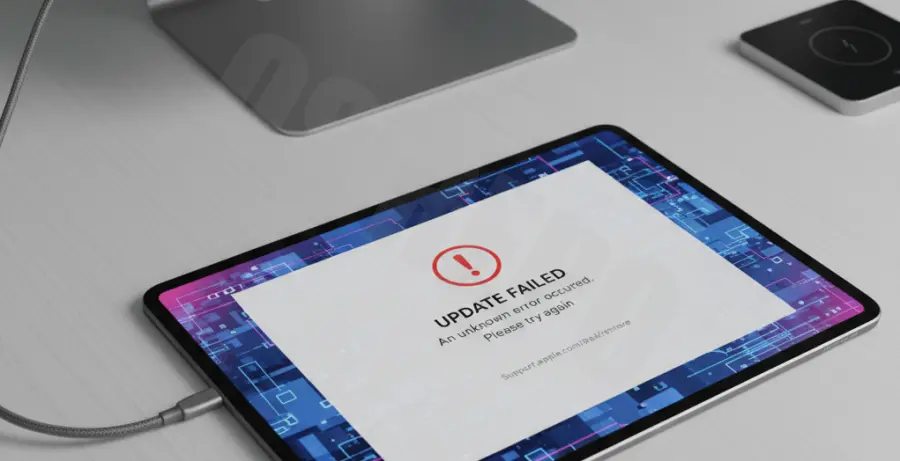
What is “an error occurred installing ipados”?
The “an error occurred installing ipados” message is a generic system alert that appears on iPad Pro devices when the software update process is interrupted. It usually signifies that the device cannot verify the update or finish the installation sequence.
This error is particularly common during major iPadOS releases. It often stems from a conflict between the local hardware state and the Apple update servers. For iPad Pro users, this can be frustrating given the device’s reliance on the latest features for productivity.
Step-by-Step Solutions
1. Clear iPad Pro Storage
iPadOS updates require significant free space to unpack and install. If your iPad Pro is near capacity, the installation will fail immediately. Ensure you have at least 5GB to 10GB of free space.
Navigate to Settings > General > iPad Storage to identify which apps are consuming the most data. Offload unused apps to reclaim space without losing your personal data.
2. Delete and Redownload the Update
Sometimes the downloaded update file is corrupted. Removing it and starting over often clears the error.
- Go to Settings > General > iPad Storage.
- Find the iPadOS update in the list of apps.
- Tap Delete Update.
- Go back to Software Update and try downloading it again.
3. Force Restart your iPad Pro
A force restart clears the temporary cache and refreshes system processes that might be blocking the installation. For iPad Pro models without a Home button, follow this sequence:
# Sequence for iPad Pro (No Home Button):
1. Press and release Volume Up.
2. Press and release Volume Down.
3. Press and hold Power Button until Apple logo appears.
4. Update via Mac or PC
If the over-the-air (OTA) update continues to fail, use a computer. This method is more reliable as the computer handles the file verification and extraction.
Connect your iPad Pro to your Mac (Finder) or Windows PC (iTunes). Select your device and click Check for Update. Follow the prompts to install the software via the wired connection.
5. Reset Network Settings
Network instability can cause the “verification” stage of the install to fail. Resetting your network settings can resolve underlying DNS or configuration issues.
Go to Settings > General > Transfer or Reset iPad > Reset > Reset Network Settings. Note that this will remove saved Wi-Fi passwords.