Immediate Fix (Method 1): The Forced Hard Restart
The fastest way to break a boot loop after an Android 15 update is a hardware-level forced restart. This interrupts the corrupted power cycle and forces the system to re-initialize the boot sequence.
Press and hold the Power button and Volume Down button simultaneously for at least 15 to 20 seconds. Release the buttons only when the screen goes black and the manufacturer logo reappears.
If your device remains stuck, try connecting it to a wall charger for 10 minutes before attempting the hard restart again. Sometimes a low battery state during the finalization of the Android 15 update causes the bootloader to hang.
Technical Explanation: Why Android 15 Fails to Boot
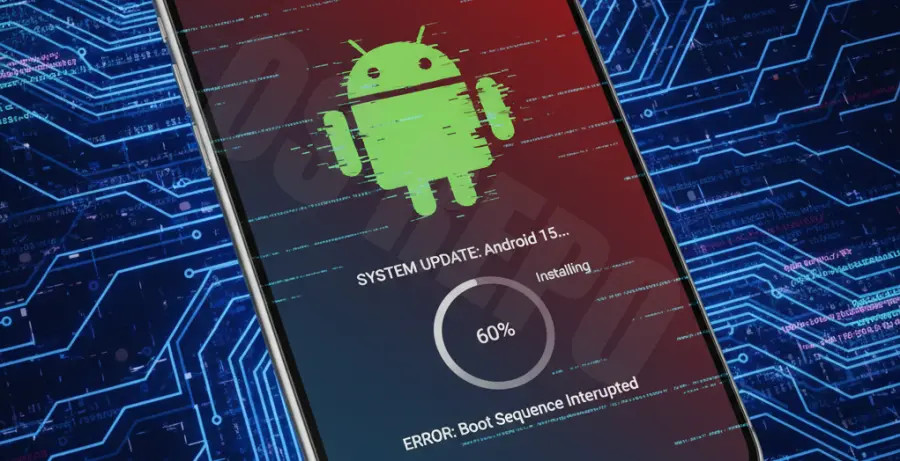
The Android 15 update process involves rewriting critical system partitions, specifically the “System” and “Vendor” blocks. A boot loop usually occurs when there is a checksum mismatch or a “dm-verity” error during the verification phase.
In many cases, the update fails because of “A/B Partition” switching errors. If the new update on Partition B is corrupted, and the system fails to roll back to Partition A, the device enters a permanent “Stuck on Logo” state.
Common Failure Points
| Error Source | Technical Cause | Risk Level |
|---|---|---|
| OTA Corruption | Incomplete download or interrupted write process. | Medium |
| Cache Conflict | Old system data clashing with Android 15 binaries. | Low |
| Bootloader Lock | Security flags preventing the new kernel from executing. | High |
Alternative Methods: Recovery and ADB Sideload
Method 2: Wipe Cache via Recovery Mode
If the hard restart fails, you must access the Android Recovery menu to clear temporary files. Turn off your device, then hold Power + Volume Up until the recovery screen appears.
Use the volume keys to navigate to “Wipe Cache Partition” (if available) or “Mount /System” to check for errors. Confirm the selection with the Power button and reboot the system.
Method 3: ADB Sideload the Update
If the system files are truly corrupted, you can manually push the Android 15 OTA image using a computer. This replaces the broken update files without necessarily wiping your personal data.
Connect your phone to your PC, enter “Apply update from ADB” in Recovery mode, and run the following command in your terminal:
adb sideload android_15_ota_package.zipEnsure you have the latest platform tools installed on your computer. If the process reaches 100%, select “Reboot system now” to complete the fix.