Symptoms & Diagnosis
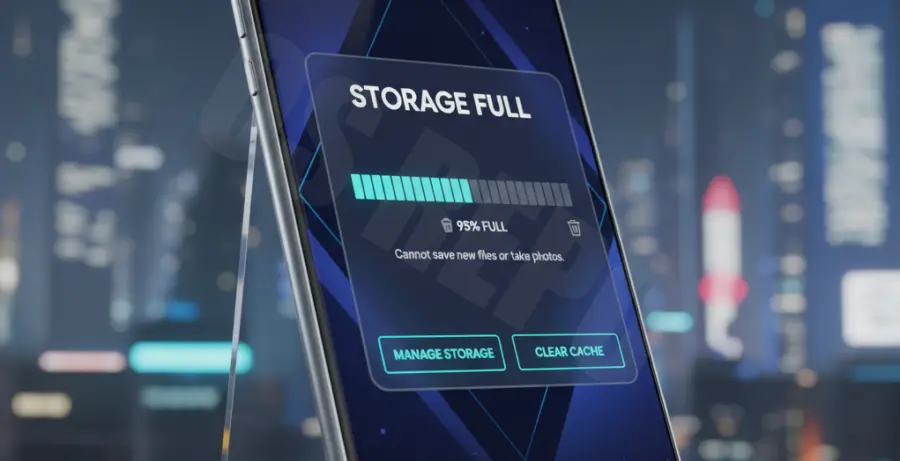
The Samsung Galaxy S25 Ultra requires a significant amount of free space to download, unpack, and install major firmware updates. When the system detects insufficient overhead, the update process will halt abruptly.
Common symptoms include a persistent “Not enough storage space” notification, the update progress bar freezing at 0% or 25%, or receiving a generic error code during the installation phase. In some cases, the device may download the package but fail during the “Processing” stage.
| Symptom | Possible Cause | Required Action |
|---|---|---|
| Error Code: “Insufficient Storage” | Less than 10GB of free space available. | Delete large files or clear system cache. |
| Update Loop | Corrupted temporary update files. | Clear “Software Update” app data. |
| Download Interrupted | Network timeout or cache overflow. | Reset network settings and check storage. |
To diagnose the exact space requirement, navigate to Settings > Battery and Device Care > Storage. Ensure you have at least 15GB to 20GB of free space to accommodate both the download package and the installation overhead.
Troubleshooting Guide
If your Galaxy S25 Ultra update failed, the first step is to purge temporary files that might be clogging the system partition. Even if your internal storage seems sufficient, the cache might be full.
Wipe Cache Partition
Wiping the cache partition removes temporary system files without deleting your personal data. This is a standard procedure for fixing update-related stalls.
# Recovery Mode Logic (Simulation)
1. Power off the device.
2. Connect to a PC via USB-C.
3. Hold Power + Volume Up until the Logo appears.
4. Select "Wipe Cache Partition" using volume keys.
5. Confirm and Reboot.
Clear Software Update Data
If the update file itself is corrupted, you must delete the partial download. Navigate to Settings > Apps, toggle on “Show system apps,” and find Software Update. Select Storage and then Clear Data.
Offload Large Media Files
High-resolution videos recorded on the S25 Ultra’s 200MP camera consume space rapidly. Move these to OneDrive, Google Drive, or an external SSD to free up the necessary blocks for the One UI installation.
Prevention
To prevent future update failures on your Galaxy S25 Ultra, maintain a “buffer zone” of at least 15% of your total storage capacity. Android systems function more efficiently when the SSD is not near its limit.
Enable Auto-optimization in the Device Care settings. This feature restarts your phone periodically and clears background processes that generate unnecessary temporary files.
Lastly, schedule large updates for times when you are connected to a stable Wi-Fi network and a power source. This ensures that the storage-intensive process of unpacking the firmware is not interrupted by power loss or data fluctuations.