Symptoms & Diagnosis
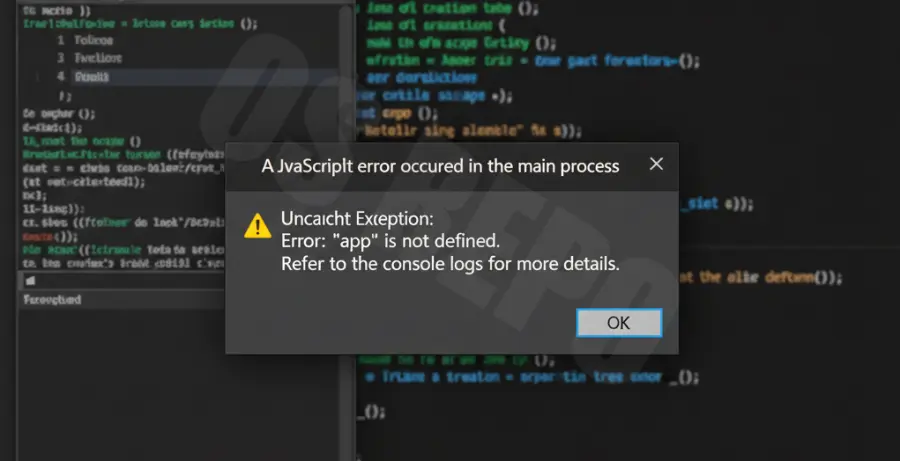
When a JavaScript runtime error occurs during installation, you typically encounter a pop-up window titled “A JavaScript error occurred in the main process.” This usually happens when launching applications built on frameworks like Electron or when installing Node.js packages.
Common indicators include “Uncaught ReferenceError,” missing dependency alerts, or the installer simply freezing at the “Initializing” stage. You may also see specific error codes such as `ENOENT` or `EACCES` in the background log files.
To diagnose the root cause, check if the application has a log folder in your `AppData` directory. Reviewing these logs often reveals whether the issue stems from a corrupted file path or a conflict with existing system permissions.
Troubleshooting Guide
The most effective way to resolve installation-based runtime errors is to reset the environment and ensure all dependencies are correctly mapped. Start by cleaning the package manager cache and verifying your current Node.js version.
Run the following commands in your terminal or command prompt as an administrator:
# Clear the npm cache to remove corrupted files
npm cache clean --force

# Check current Node and NPM versions for compatibility
node -v
npm -v

# Reinstall the global npm package to fix broken paths
npm install -g npm@latest
If the error persists, use the table below to identify specific system-level conflicts associated with runtime failures:
| Error Code | Typical Cause | Recommended Action |
|---|---|---|
| EACCES | Permission Denied | Run the installer or terminal as Administrator. |
| ENOENT | Missing File/Directory | Check PATH variables and reinstall the package. |
| MODULE_NOT_FOUND | Broken Dependency | Delete node_modules and run “npm install” again. |
For application-specific errors (like Discord or Spotify), navigate to `%AppData%` and delete the local folders associated with that program. This forces the installer to recreate the JavaScript environment from scratch.
Repairing Environment Variables
Sometimes the system cannot find the JavaScript runtime because the Path is incorrectly set. Ensure that your Node.js installation path is present in your System Environment Variables.
# Add Node.js to your path temporarily to test
set PATH=%PATH%;C:\Program Files\nodejs\
Prevention
To prevent JavaScript runtime errors from recurring during future installations, follow these maintenance best practices:
- Keep Runtimes Updated: Regularly update Node.js and Electron-based apps to their stable (LTS) versions.
- Use Official Installers: Avoid manual file transfers; always use .msi or .exe installers that register system paths automatically.
- Manage Permissions: Ensure your user profile has full “Write” access to the
TempandAppDatadirectories. - Monitor Antivirus: Sometimes security software flags script-heavy installers; whitelist your development tools.