| Issue | Microsoft Edge Update Error 0x80040154 |
|---|---|
| Common Cause | Missing COM components, disabled update services, or corrupt registry keys. |
| Quick Fix | Restart Edge Update services or reinstall the browser. |
| Difficulty | Intermediate |
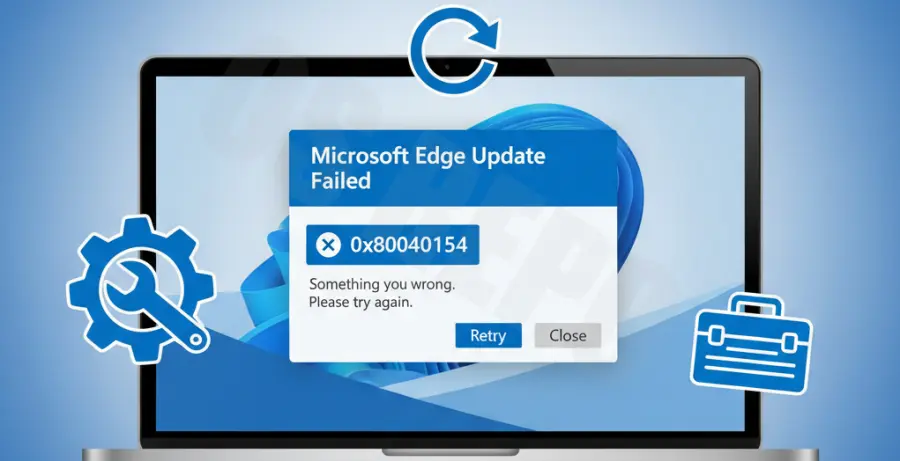
What is Microsoft Edge Update Error 0x80040154?
The error code 0x80040154 is a common Windows issue that occurs when the system fails to register a specific class or interface. In the context of Microsoft Edge, this means the “EdgeUpdate” component cannot find the necessary COM (Component Object Model) components to execute the update process.
When this happens, you will see a message stating “An error occurred while checking for updates” followed by the specific hex code. This usually points to a broken link between the browser and the background update service.
Step-by-Step Solutions
1. Restart Microsoft Edge Update Services
Often, the update fails because the background service responsible for fetching new versions has stalled or is disabled. You can manually trigger these services through the Windows Services manager.
Press Win + R, type services.msc, and hit Enter. Locate “Microsoft Edge Update Service (edgeupdate)” and “Microsoft Edge Update Service (edgeupdatem)”. Right-click both and select Restart. If they are stopped, select Start and set their Startup type to Automatic.
2. Re-register Edge Update Components
If the services are running but the error persists, you may need to re-register the DLL files associated with the update engine. You can do this using the Command Prompt with Administrative privileges.
cd "C:\Program Files (x86)\Microsoft\EdgeUpdate"
MicrosoftEdgeUpdate.exe /RegServer
This command forces the update engine to re-register its components in the Windows Registry, often clearing the 0x80040154 communication block.
3. Rename the EdgeUpdate Folder
Corrupted files within the update directory can prevent the browser from recognizing the updater. Renaming the folder forces Windows to recreate a fresh version of the update utility.
Navigate to C:\Program Files (x86)\Microsoft\. Locate the folder named EdgeUpdate. Right-click it and rename it to EdgeUpdate.old. Now, restart Microsoft Edge and try the update again through the “About Microsoft Edge” settings page.
4. Repair via Windows Settings
Windows includes a built-in repair tool for Microsoft Edge that replaces missing system files without deleting your bookmarks or passwords. This is one of the most effective ways to fix registration errors.
Go to Settings > Apps > Installed Apps. Find Microsoft Edge in the list, click the three dots, and select Modify. Click the Repair button and follow the on-screen instructions while staying connected to the internet.
5. Manual Reinstall from Official Source
If all else fails, the local updater may be too damaged to repair itself. You can download the latest version of the installer directly from Microsoft to overwrite the corrupted files.
Visit the official Microsoft Edge download page and download the installer for Windows 10/11. Run the installer as an administrator. It will detect your existing installation and “refresh” the core files, effectively bypassing the 0x80040154 error.