| Problem | Windows 10 keyboard not working at login screen. |
|---|---|
| Primary Causes | Driver conflicts, Fast Startup glitches, filter keys enabled, or hardware port issues. |
| Quickest Fix | Use the On-Screen Keyboard via Ease of Access to log in and update drivers. |
| Difficulty Level | Low to Moderate. |
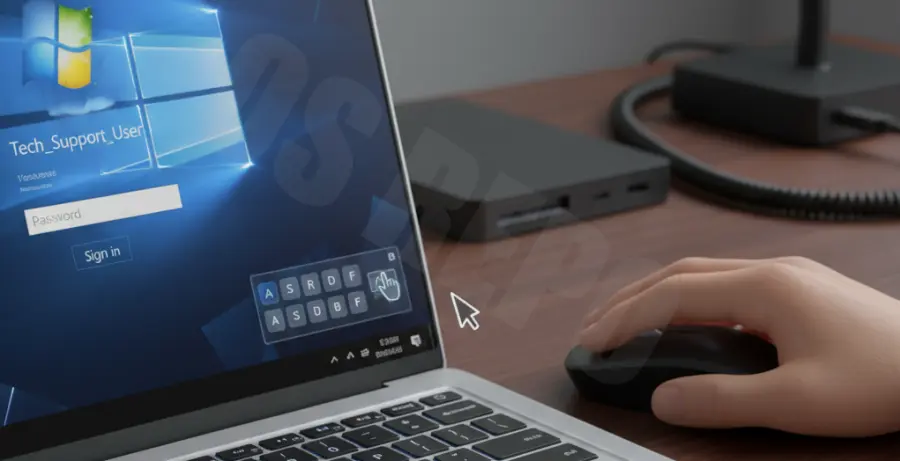
What is the Windows 10 Keyboard Not Working at Login Screen Error?
The “Windows 10 keyboard not working at login screen” error is a common technical glitch where the operating system fails to recognize input from a physical keyboard during the authentication phase. This issue prevents users from entering their passwords or PINs, effectively locking them out of their desktop environment.
This failure usually stems from software-level communication errors. It often occurs after a Windows update, a change in system settings, or when “Fast Startup” prevents the system from loading keyboard drivers correctly. It is rarely a total hardware failure unless the keyboard fails to work in the BIOS as well.
Step-by-Step Solutions
Method 1: Use the On-Screen Keyboard (Bypass Login)
If you are stuck at the login screen, use the built-in accessibility tools to enter your credentials.
1. Click on the **Ease of Access** icon (the clock-like or wheelchair icon) in the bottom-right corner of the login screen.
2. Select **On-Screen Keyboard** from the menu.
3. Use your mouse to click the keys and enter your password.
4. Once logged in, proceed to the driver troubleshooting steps below.
Method 2: Disable Fast Startup
Fast Startup can sometimes cause driver initialization skips, leading to keyboard unresponsiveness.
1. Press `Win + R`, type `powercfg.cpl`, and hit Enter.
2. Click **Choose what the power buttons do** on the left panel.
3. Click **Change settings that are currently unavailable**.
4. Uncheck **Turn on fast startup (recommended)**.
5. Click **Save changes** and restart your computer.
Method 3: Reinstall Keyboard Drivers
Corrupted drivers are a frequent culprit. You can force Windows to refresh the driver stack.
1. Right-click the **Start** button and select **Device Manager**.
2. Expand the **Keyboards** section.
3. Right-click your keyboard device (usually “HID Keyboard Device”) and select **Uninstall device**.
4. Restart your PC. Windows will automatically reinstall the driver upon reboot.
Method 4: Run System File Scans
If the issue is caused by corrupted system files, the Deployment Image Servicing and Management (DISM) tool and System File Checker (SFC) can repair the OS.
# Run these in an Administrative Command Prompt
sfc /scannow
dism /online /cleanup-image /restorehealth
Method 5: Check Filter Keys Settings
Sometimes, the “Filter Keys” feature is accidentally enabled, which tells Windows to ignore brief or repeated keystrokes.
1. Open **Settings** and go to **Ease of Access**.
2. Scroll down to **Keyboard** in the left sidebar.
3. Ensure the toggle for **Use Filter Keys** is turned **Off**.