Symptoms & Diagnosis
The iPhone 16 Pro, despite its advanced hardware, can occasionally encounter Bluetooth stack corruption. This usually manifests during initial pairing attempts or when switching between multiple audio peripherals.
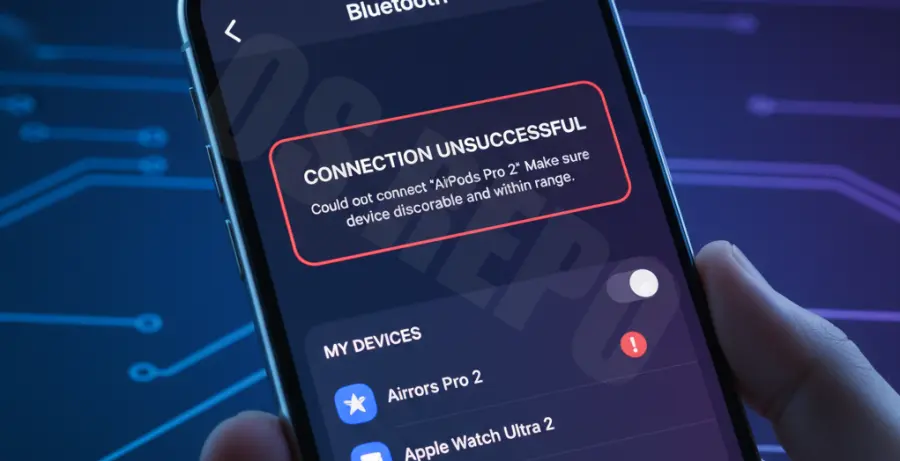
Common indicators of a corrupted Bluetooth cache include the “Connection Unsuccessful” popup, frequent audio stuttering, or the device failing to discover nearby hardware. If your iPhone 16 Pro sees a device but refuses to handshake, the local pairing keys are likely mismatched.
| Symptom | Potential Root Cause |
|---|---|
| Pairing Failed Error | Stale Cache / Corrupt Handshake Key |
| Device Not Found | Discovery Protocol Timeout |
| Audio Lag/Stutter | Interference or Buffering Overflow |
Troubleshooting Guide
Since iOS does not provide a dedicated “Clear Cache” button for Bluetooth, you must trigger a system-level refresh of the wireless daemon. Follow these steps to purge the temporary files and reset the pairing registry.
1. Remove the Faulty Device
Navigate to **Settings > Bluetooth**. Tap the “i” icon next to the problematic device and select **Forget This Device**. This removes the specific pairing key from the keychain.
2. Force Restart the Bluetooth Daemon
Toggle Bluetooth off in the settings, wait 10 seconds, and toggle it back on. For a deeper clear, toggle **Airplane Mode** on and off to power-cycle the internal radio modules.
3. Reset Network Settings
This is the most effective way to clear the Bluetooth cache on iPhone 16 Pro. Note that this will also reset saved Wi-Fi passwords. Go to **Settings > General > Transfer or Reset iPhone > Reset > Reset Network Settings**.
Manual Cache Flush (Simulated/Technical Reference)
For developers debugging Bluetooth LE on iPhone 16 Pro, the internal state machine can be monitored via logs. While you cannot run bash on a stock iPhone, the system effectively executes the equivalent of:
# Simulated internal process of clearing BT stack
sudo killall bluetoothd
rm -rf /var/mobile/Library/Bluetooth/*.plist
# System automatically restarts the daemon
Prevention
To prevent future pairing failures on your iPhone 16 Pro, ensure your iOS version is always up to date. Apple frequently releases patches for the Bluetooth stack in minor point updates.
Avoid keeping too many “ghost” devices in your Bluetooth list. If you no longer use a device, remove it to reduce the complexity of the discovery polling cycle. Finally, ensure your iPhone is not under heavy thermal load, as the system may throttle wireless chips to manage heat.