Symptoms & Diagnosis
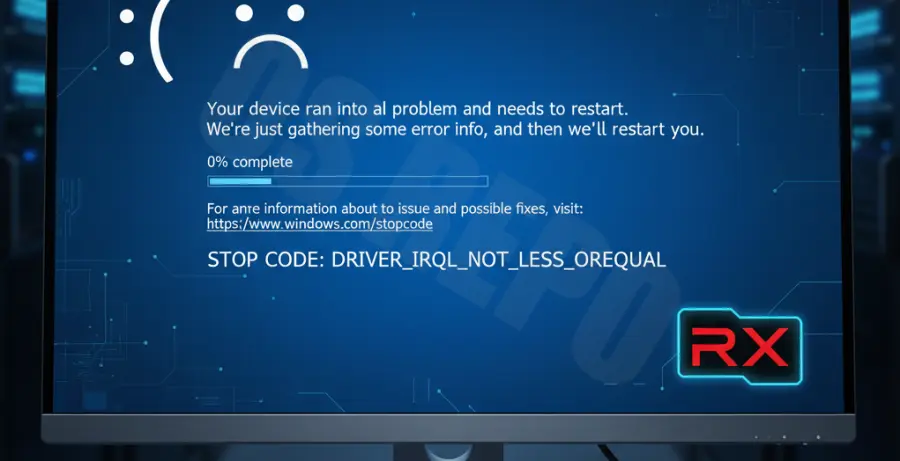
The “AMD TDR Failure” (Timeout Detection and Recovery) is a common Windows 10 error that occurs when the graphics card driver fails to respond within a specific timeframe. Windows attempts to reset the driver, but if it fails, the system crashes to a Blue Screen of Death (BSOD).
Common symptoms include the screen flickering black, the “Display driver amdkmdap stopped responding and has successfully recovered” notification, or immediate crashes to the desktop during gaming or GPU-intensive tasks.
To diagnose this, check the Event Viewer under Windows Logs. Look for “Event ID 4101,” which confirms that the Timeout Detection and Recovery mechanism was triggered by the AMD Radeon software.
Troubleshooting Guide
1. Use Display Driver Uninstaller (DDU)
Standard uninstalls often leave behind corrupted files. Download DDU and run it in Safe Mode to completely wipe the existing AMD drivers before installing the latest WHQL-certified version from the AMD website.
2. Increase TDR Delay via Registry
Sometimes the GPU just needs more time to process tasks. You can extend the recovery window by modifying the Windows Registry. Navigate to the following path:
HKEY_LOCAL_MACHINE\SYSTEM\CurrentControlSet\Control\GraphicsDriversRight-click, select New > DWORD (32-bit) Value. Name it “TdrDelay” and set the value to 8 (Decimal). This gives the driver 8 seconds to respond instead of the default 2.
3. Repair System Files
Corrupted Windows system files can interfere with how the OS communicates with the Radeon hardware. Open Command Prompt as Administrator and run the following command:
sfc /scannowWait for the process to finish and restart your computer to apply any found fixes.
4. Disable Fast Startup
Windows 10 “Fast Startup” can prevent drivers from loading correctly during boot. Disable this in Power Options > Choose what the power buttons do > Change settings that are currently unavailable.
Prevention
Maintaining system stability is key to preventing future AMD TDR failures. Avoid aggressive undervolting or overclocking unless you have verified stability through stress testing.
Check the table below for a summary of preventative measures:
| Action | Benefit |
|---|---|
| Update BIOS/UEFI | Improves PCIe stability and GPU compatibility. |
| Monitor Temperatures | Prevents thermal throttling and driver resets. |
| Check Power Supply (PSU) | Ensures the GPU receives consistent voltage. |
| Use WHQL Drivers | Reduces crashes compared to “Optional/Beta” drivers. |
If the error persists after these steps, it may indicate a hardware fault with the GPU itself, such as failing VRAM or a faulty capacitor.