| Fix Method | Estimated Time | Success Rate |
|---|---|---|
| Hard Force Restart | 30 Seconds | High |
| Boot into Safe Mode | 5 Minutes | Medium |
| Wipe Cache/Factory Reset | 15 Minutes | High |
| ADB System Repair | 20 Minutes | Low (Software only) |
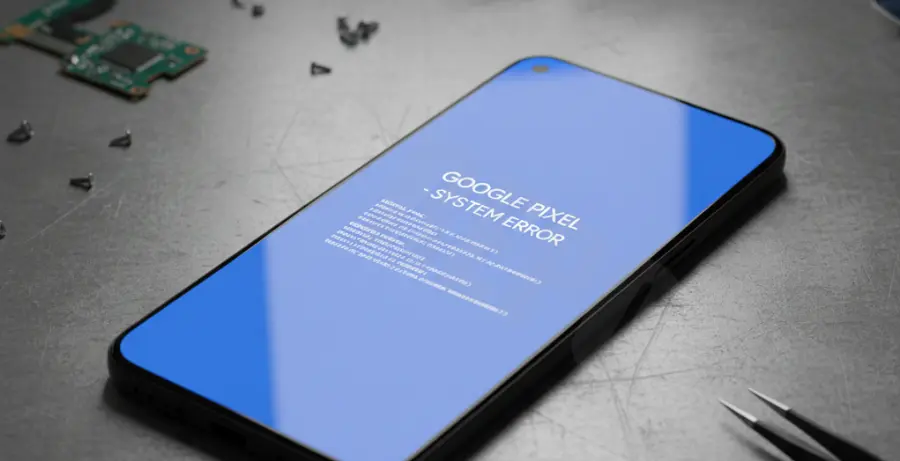
What is the Google Pixel 9 Pro XL Blue Screen?
The Blue Screen (BSOD) on a Google Pixel 9 Pro XL is a critical system error indicating that the Android kernel has encountered a fatal instruction. Unlike a standard app crash, a blue screen usually freezes the entire device.
This issue typically stems from a hardware malfunction, a corrupted system update, or a deep-level software conflict. While rare on the Tensor G4 chip, it requires immediate troubleshooting to prevent data loss.
Step-by-Step Solutions
1. Perform a Hard Force Restart
The first step is to break the power cycle. This cuts power to the CPU and forces a fresh boot without deleting your personal data.
Press and hold the Power button and the Volume Up button simultaneously for at least 30 seconds. Do not let go until the Google “G” logo appears on the screen.
2. Boot into Safe Mode
If the blue screen is caused by a third-party application, Safe Mode will bypass it. This allows you to uninstall the problematic software.
While the device is off, press the Power button. As soon as the animation starts, press and hold the Volume Down button until the device finishes booting. You should see “Safe Mode” at the bottom of the screen.
3. Use ADB to Check System Integrity
For technical users, you can use the Android Debug Bridge (ADB) to check if the device is communicating with a PC. This helps determine if the hardware is totally unresponsive.
adb devices
adb reboot recovery
If your device appears in the list, the hardware is likely fine, and the issue is strictly software-based.
4. Factory Reset via Recovery Mode
If the blue screen persists, you must wipe the system partition. This will erase all data, so ensure you have a Google Cloud backup.
- Turn off the device.
- Hold Power + Volume Down until the Fastboot menu appears.
- Use volume keys to select “Recovery Mode” and press Power.
- When the “No Command” Android appears, hold Power and tap Volume Up once.
- Select “Wipe data/factory reset” and confirm.
5. Contact Google Support
The Pixel 9 Pro XL is a premium device with a comprehensive warranty. If a factory reset does not solve the blue screen, it is likely a defect in the motherboard or the Tensor G4 SoC.
Visit the official Google Store support page to initiate a Mail-in repair or an RMA request.