Symptoms & Diagnosis: Identifying the macOS Sequoia Blue Screen
Users upgrading to macOS Sequoia may encounter a rare but frustrating “Blue Screen” (BSOD) during the boot sequence. This typically signifies a kernel panic or a failure to load essential hardware parameters stored in the Non-Volatile Random-Access Memory (NVRAM).
Common symptoms include the Apple logo appearing briefly followed by a solid blue or flickering screen. In some cases, the system may enter an endless reboot loop or fail to recognize the startup disk altogether.
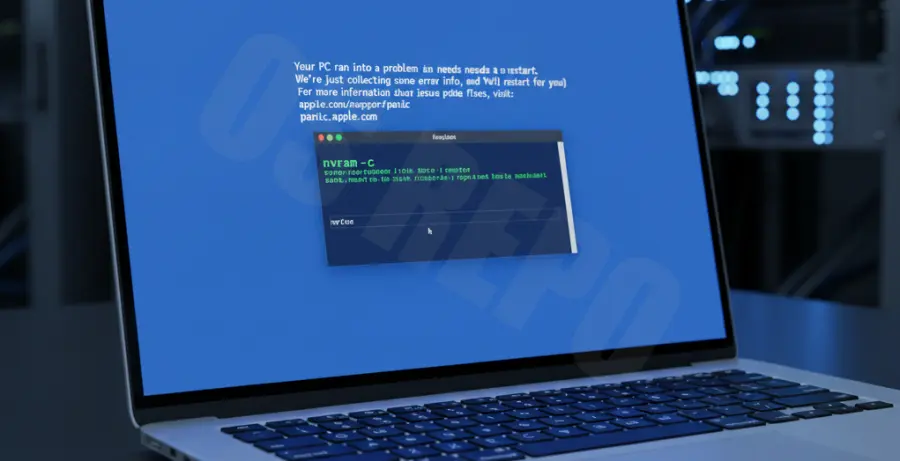
Common Diagnostic Indicators
| Symptom | Probable Cause |
|---|---|
| Solid Blue Screen on Boot | Corrupted display configuration in NVRAM. |
| “Stuck” Progress Bar | Invalid startup disk pointer or kext conflict. |
| Kernel Panic (Black/Blue) | Peripheral data corruption or hardware state mismatch. |
Troubleshooting Guide: Resetting NVRAM/PRAM on macOS Sequoia
Resetting the NVRAM clears temporary architectural data that might be causing the startup hang. The process differs significantly between Intel-based Macs and Apple Silicon (M1/M2/M3/M4) models.
Method 1: Apple Silicon (M-Series) Macs
For Apple Silicon, there is no manual key combination to reset NVRAM. The system performs a self-check and NVRAM reset automatically during a cold boot if it detects a corruption.
1. Shut down your Mac completely.
2. Wait 30 seconds.
3. Press and hold the Power button until you see “Loading startup options.”
4. Restart the Mac normally from the Options menu.
Method 2: Intel-Based Macs (Key Combination)
If you are running macOS Sequoia on a supported Intel Mac, use the traditional hardware shortcut. This is highly effective for clearing stuck boot flags.
1. Shut down the computer.
2. Press the Power button and immediately hold Option + Command + P + R.
3. Release the keys after about 20 seconds or after the Apple logo appears and disappears for the second time.
Method 3: Terminal Reset (Single User / Recovery Mode)
If you can reach the Terminal via Recovery Mode, you can force a clear of all NVRAM variables. This is the most thorough method for Sequoia users.
# Clear all NVRAM variables
nvram -c

# Verify the clear (should return empty or minimal system data)
nvram -p

# Reboot the system
reboot
Prevention: How to Avoid Future Sequoia Startup Failures
While NVRAM resets solve immediate issues, maintaining system health prevents the blue screen from recurring. macOS Sequoia is sensitive to legacy kernel extensions and third-party power management tools.
- Keep Firmware Updated: Always install the latest macOS Sequoia point releases, as they contain critical EFI/BridgeOS firmware patches.
- Minimize Peripherals: Disconnect external USB-C docks or monitors during the initial boot sequence if you experience instability.
- Check Disk Health: Use Disk Utility’s First Aid feature regularly to ensure the APFS container is not suffering from metadata corruption.
- Avoid Beta Profiles: Unless necessary for development, stay on the stable channel to ensure NVRAM variables remain compatible with your hardware.