Symptoms & Diagnosis
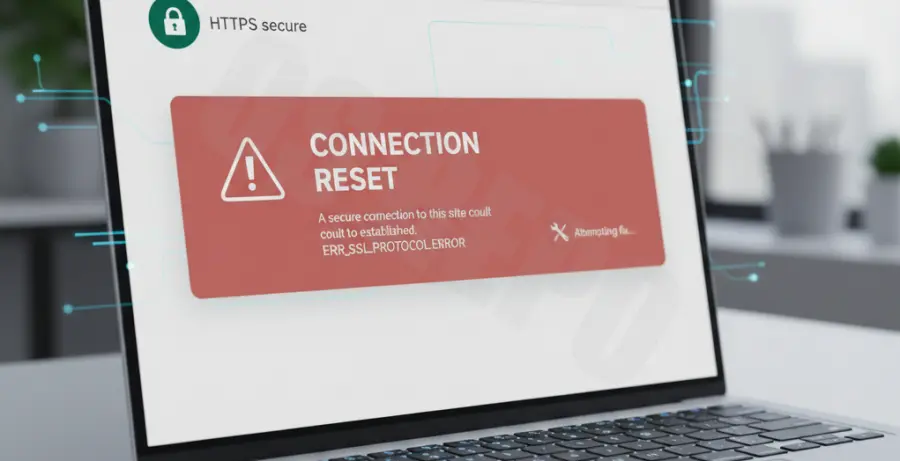
The ERR_SSL_PROTOCOL_ERROR in Google Chrome occurs when the browser fails to establish a secure connection with a website’s server. This typically indicates an issue with the SSL/TLS handshake process.
Symptoms include a sudden block of access to a specific site, while other pages may load normally. You will see a message stating, “This site can’t provide a secure connection,” followed by the specific error code.
Common triggers include incorrect system clock settings, a corrupted SSL cache, or aggressive firewall configurations. Identifying whether the issue is client-side or server-side is the first step in diagnosis.
Troubleshooting Guide
Follow these steps to resolve the connection error. Start with the simplest fix before moving to advanced configurations.
1. Synchronize System Date and Time
SSL certificates rely on valid dates. If your computer’s clock is incorrect, Chrome will flag the certificate as invalid. Ensure your operating system is set to “Set time automatically.”
2. Clear the SSL State
A stored SSL certificate cache can sometimes cause conflicts. Clearing this state refreshes the handshake data without deleting your browsing history.
| System | Navigation Path | Action |
|---|---|---|
| Windows | Control Panel > Internet Options > Content | Click “Clear SSL State” |
| macOS | Keychain Access | Remove expired certificates |
3. Flush DNS Cache
Expired DNS records can prevent Chrome from reaching the correct secure server. Use the terminal to refresh your network configuration.
ipconfig /flushdns4. Disable Browser Extensions
Third-party security extensions or VPNs can interfere with SSL protocols. Open Chrome in Incognito Mode (Ctrl+Shift+N). If the site loads, an extension is the culprit.
5. Adjust Antivirus Settings
Some antivirus programs use “SSL Filtering” or “HTTPS Scanning.” While intended to be secure, these features can block legitimate handshakes. Temporarily disable these features to test the connection.
Prevention
To prevent the ERR_SSL_PROTOCOL_ERROR from recurring, keep Google Chrome updated to the latest version. Developers release patches frequently to support newer TLS versions and deprecate old, insecure ones.
Regularly clear your browser’s temporary files and cookies to ensure no corrupted data interferes with the handshake. For website owners, ensuring that your SSL certificate is correctly installed and using modern encryption suites is essential.
Avoid using outdated operating systems like Windows XP or older versions of macOS, as they lack the root certificates required to validate modern web security protocols.