| Fix Method | Estimated Time | Difficulty Level |
|---|---|---|
| Force Restart Edge | 1 Minute | Easy |
| Clear Browser Cache | 2 Minutes | Easy |
| Disable Hardware Acceleration | 3 Minutes | Medium |
| Reset/Repair Edge | 5 Minutes | Medium |
What is Microsoft Edge Not Responding?
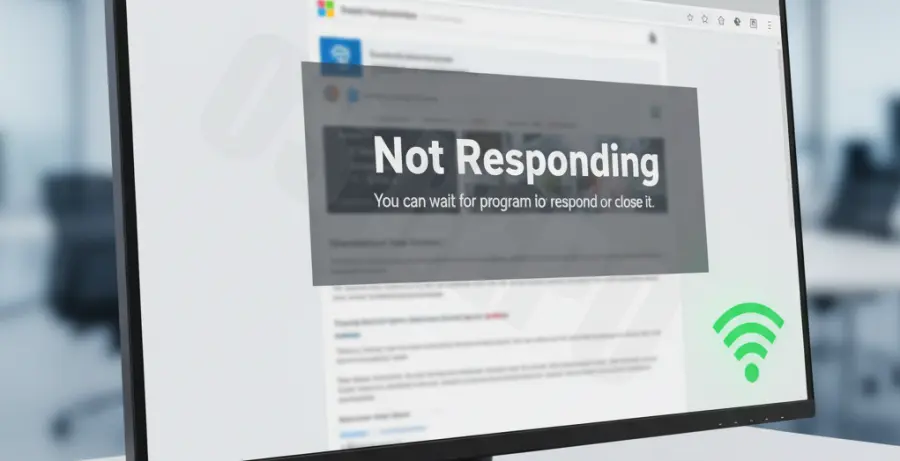
The “Microsoft Edge not responding” error occurs when the browser freezes, hangs, or fails to process user inputs despite a stable internet connection. While other apps like Slack or Spotify work perfectly, Edge becomes stuck.
This issue typically points to internal browser conflicts rather than network hardware. It is often caused by corrupted cache files, incompatible extensions, or excessive RAM usage by specific tabs.
Step-by-Step Solutions
1. Force Quit via Task Manager
If Edge is completely frozen, you must kill the background processes before restarting it. This clears temporary memory glitches.
- Press Ctrl + Shift + Esc to open Task Manager.
- Find Microsoft Edge in the list.
- Right-click it and select End Task.
2. Disable Hardware Acceleration
Edge uses your GPU to speed up page rendering. However, outdated graphics drivers can cause the browser to stop responding during heavy loads.
- Open Edge and click the three dots (…).
- Go to Settings > System and performance.
- Toggle off Use hardware acceleration when available.
- Restart the browser.
3. Flush DNS Cache
Sometimes the browser hangs while trying to resolve IP addresses. Clearing the DNS cache can force Edge to refresh its connection path.
ipconfig /flushdns4. Clear Browsing Data
Old cookies and cached files can become corrupted, leading to unresponsive scripts. Cleaning these files often restores speed.
- Press Ctrl + Shift + Del inside Edge.
- Select All time as the time range.
- Check Cookies and Cached images and files.
- Click Clear now.
5. Repair Microsoft Edge via Windows Settings
Windows includes a built-in repair tool that fixes system file corruption without deleting your personal data or bookmarks.
- Open Windows Settings (Win + I).
- Go to Apps > Installed Apps.
- Search for Microsoft Edge.
- Click the dots and select Modify, then click Repair.
6. Disable Problematic Extensions
Ad-blockers or security extensions can sometimes conflict with the browser’s core engine, causing it to freeze on certain websites.
- Type
edge://extensions/in the address bar. - Turn off all extensions.
- Enable them one by one to identify the culprit.