| Issue | Primary Cause | Estimated Success Rate |
|---|---|---|
| iPad Pro Error 11 | Software/Hardware Mismatch or Faulty Connection | 90% |
| Update Failure | Outdated iTunes/macOS Version | High |
| Restore Error | Damaged USB Cable or Port | Medium |
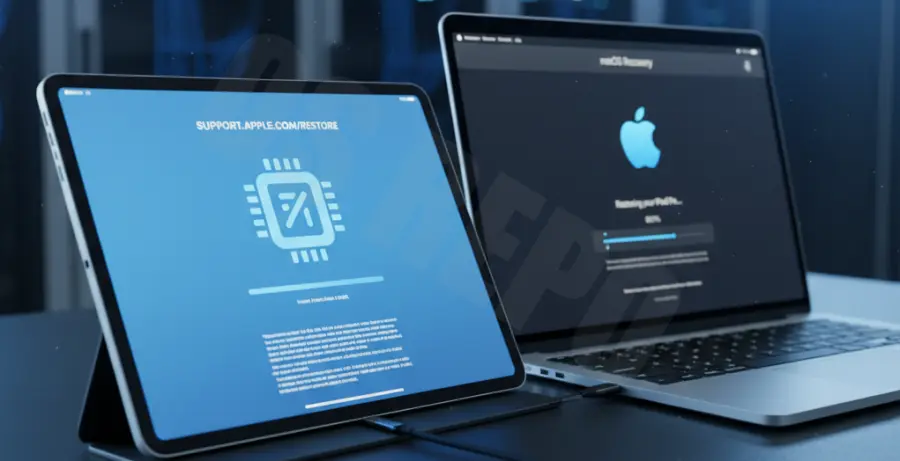
What is iPad Pro Error 11?
iPad Pro Error 11 is a specific communication error that occurs during a restore or update process. It typically signals a breakdown in data transmission between your iPad and the computer.
This error code often points to a hardware incompatibility or an outdated software environment. In many cases, the computer cannot verify the firmware package against the iPad’s internal hardware components.
Users usually encounter this via iTunes or Finder on macOS. While it sounds technical, it is frequently resolved by adjusting the physical connection or updating local software drivers.
Step-by-Step Solutions
1. Update iTunes and macOS
The most common cause for Error 11 is using an obsolete version of iTunes or macOS. Apple requires the latest security certificates to authorize firmware installations.
On a Mac, go to System Settings > General > Software Update. On Windows, open iTunes and navigate to Help > Check for Updates.
2. Inspect USB Hardware
A faulty Lightning or USB-C cable is a frequent culprit. Ensure you are using an Apple-certified MFi cable.
Switch to a different USB port directly on your computer. Avoid using USB hubs or keyboard passthrough ports, as these often lack the voltage required for data-heavy restoration.
3. Force Restart Your iPad Pro
Refreshing the internal state of the iPad can clear temporary communication glitches. For iPad Pro models without a Home button:
- Press and quickly release the Volume Up button.
- Press and quickly release the Volume Down button.
- Press and hold the Top button until the Apple logo appears.
4. Verify Connection via Terminal (Advanced)
If you are on macOS, you can verify if the system recognizes the iPad hardware ID correctly using the command line.
# Check for connected USB devices to see if iPad is detected
system_profiler SPUSBDataType | grep -i "iPad"
5. Disable Security Software
Third-party antivirus programs or firewalls can block the communication between Apple’s servers and your device. Temporarily disable these programs before attempting the restore again.
Ensure your computer’s date and time settings are set to “Automatic,” as discrepancies here can cause SSL handshake failures, resulting in Error 11.
6. Use DFU Mode
If standard Recovery Mode fails, Device Firmware Update (DFU) mode is the final software solution. This allows the iPad to interface with iTunes without loading the OS.
Note that DFU mode will erase all data on the device. Connect your iPad to the computer and follow the specific button sequence for your model to enter this deep restore state.