Immediate Fix: Running SFC Scannow to Stop Windows 11 Crashes
If your Windows 11 system is constantly crashing to the desktop, the most effective first step is running the System File Checker (SFC). This utility identifies and repairs corrupted system files that cause instability.
Follow these steps to execute the command immediately:
- Press the Windows Key and type cmd.
- Right-click “Command Prompt” and select Run as Administrator.
- In the terminal window, type the following command and press Enter:
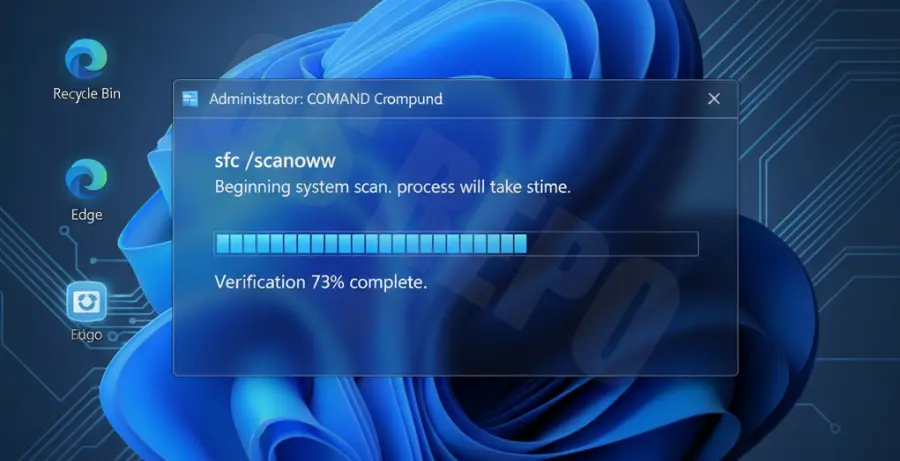
sfc /scannowThe process usually takes 5 to 15 minutes. Do not close the window until the verification is 100% complete. Once finished, you will receive a report stating if files were fixed.
| Command Result | Meaning |
|---|---|
| Windows Resource Protection did not find any integrity violations. | Your system files are healthy; the crash may be driver or hardware related. |
| Windows Resource Protection found corrupt files and successfully repaired them. | The corruption was fixed. Restart your PC to finalize the repair. |
| Windows Resource Protection found corrupt files but was unable to fix some of them. | Further action is required, likely using the DISM tool. |
Technical Explanation: How SFC Scannow Resolves Desktop Crashes
Windows 11 relies on a specific set of dynamic link libraries (.dll) and system files (.sys) to maintain environment stability. When these files become overwritten or corrupted by power failures or faulty updates, the OS loses its “map,” resulting in a crash to the desktop.
The sfc /scannow command works by comparing your active system files against a known-good “cached” version located in the Windows Component Store (the WinSxS folder). If a discrepancy is found, SFC replaces the damaged file with the healthy version.
By restoring these core files, you eliminate software-level conflicts that trigger the “Stop Error” codes or sudden application closures common in Windows 11. It is a non-destructive process that does not affect your personal documents or installed applications.
Alternative Methods for Persistent Windows 11 Issues
Using DISM Before SFC
If SFC fails to repair the files, it is often because the source “cache” itself is corrupted. In this case, you must use the Deployment Image Servicing and Management (DISM) tool to repair the Windows image first.
DISM /Online /Cleanup-Image /RestoreHealthAfter running this command, restart your computer and run the sfc /scannow command again. This “double-repair” method fixes the majority of Windows 11 crashing issues.
Running SFC in Safe Mode
Sometimes, background third-party applications or antivirus software can interfere with the repair process. If you encounter errors while running the scan in a normal boot, try booting into Safe Mode.
In Safe Mode, only essential Windows services are active. This provides the SFC tool with exclusive access to system files, ensuring a higher success rate for repairing stubborn corruption that causes desktop crashes.