Immediate Fix
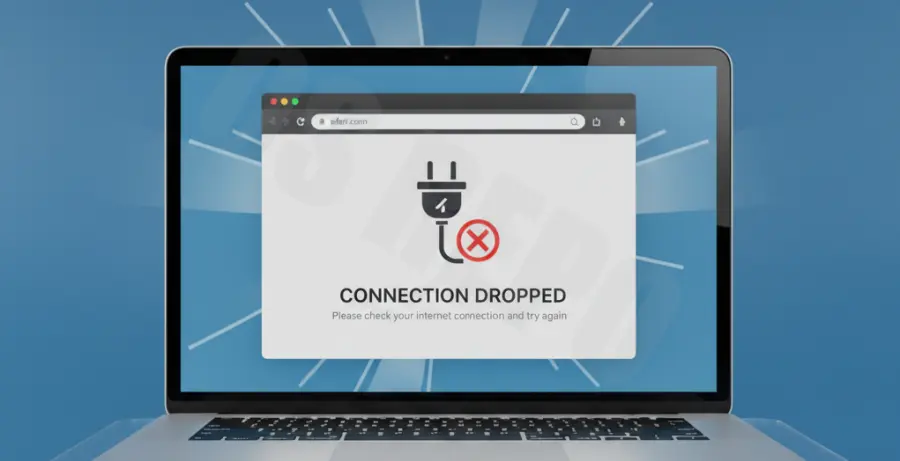
If you encounter the “Safari server unexpectedly dropped the connection” error, start by performing a hard refresh. Press Command + Option + R to reload the page and bypass the local cache.
Switch your Wi-Fi off and back on. This simple action forces your Mac or iPhone to re-establish a fresh handshake with your router, which often clears temporary network stalls.
If the error persists, try accessing the website in a Private Window (Command + Shift + N). If it loads there, a browser extension or corrupted cookie is likely the culprit.
Technical Explanation
This error typically indicates a TCP/IP level failure. It occurs when the server sends a “Reset” (RST) packet to your browser, abruptly ending the communication session.
Common technical causes include mismatched MTU (Maximum Transmission Unit) settings, aggressive firewall interference, or server-side “Keep-Alive” timeouts that expire before Safari completes the data request.
Alternative Methods
Method 1: Clear Specific Website Data
Sometimes, only one site is affected. Use the table below to manage your data without losing your entire browsing history.
| Step | Navigation Path | Purpose |
|---|---|---|
| 1 | Safari > Settings > Privacy | Access data management tools. |
| 2 | Manage Website Data | View stored cache for specific URLs. |
| 3 | Remove All (or select site) | Deletes corrupted session tokens. |
Method 2: Flush DNS Cache via Terminal
An outdated DNS cache can point Safari to an incorrect server IP, causing the connection to drop. You can manually flush the cache using the Terminal application.
sudo dscacheutil -flushcache; sudo killall -HUP mDNSResponderAfter running this command, you will be prompted for your Admin password. Once finished, restart Safari and attempt to connect to the website again.
Method 3: Disable Content Blockers
Heavy ad-blockers or security extensions can terminate connections if they detect a false positive in the site’s script. Navigate to Safari > Settings > Extensions and uncheck all active items to test the connection.
If the site loads correctly after disabling extensions, re-enable them one by one to identify the specific software causing the conflict.