Symptoms & Diagnosis
Users migrating to macOS Sequoia have reported a resurgence of screen flickering issues, particularly on MacBook Pro models equipped with ProMotion displays. This phenomenon often manifests as rapid brightness oscillations or micro-stuttering during UI transitions.
The flickering is frequently tied to the dynamic refresh rate switching mechanism. When the OS attempts to scale between 10Hz and 120Hz, timing mismatches in the display driver can cause visible “pumping” or horizontal scan lines. Identifying the root cause is the first step toward a stable display.
| Symptom | Likely Cause | Common Scenario |
|---|---|---|
| Rapid Strobing | ProMotion Variable Rate | Scrolling in Safari or Chrome |
| Horizontal Lines | GPU Driver Conflict | Waking from Sleep mode |
| Black Frames | External Cable Bandwidth | Using 4K/144Hz monitors |
Troubleshooting Guide
1. Switch to a Fixed Refresh Rate
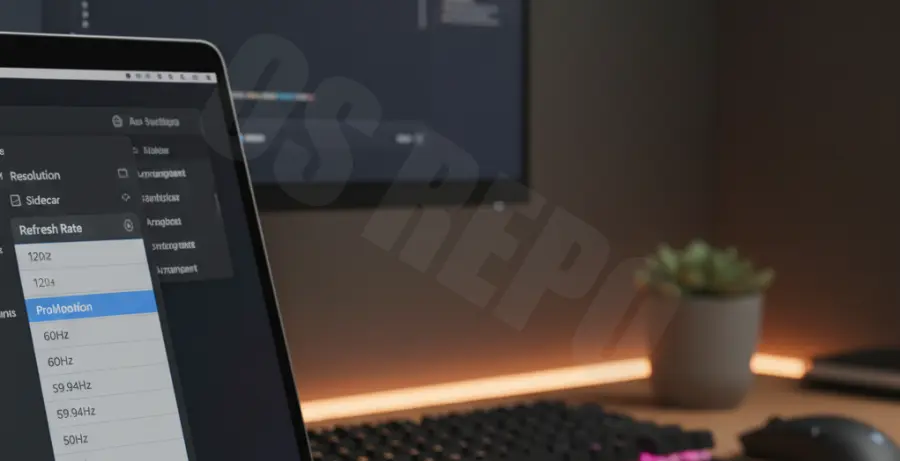
If you are experiencing flickering on a ProMotion-capable MacBook, the most effective workaround is to disable variable refresh rates. Go to System Settings > Displays and change the “Refresh Rate” from ProMotion to a fixed 60Hz. This stabilizes the voltage regulated by the display controller.
2. Reset the WindowServer Process
Sometimes the macOS window management daemon becomes unresponsive or enters a loop following an update. You can force-restart this process via Terminal to refresh the display stack without a full reboot.
sudo killall WindowServerNote: This will instantly log you out and close all open applications. Save your work before executing.
3. Disable True Tone and Night Shift
There are known edge cases in macOS Sequoia where the color temperature sensors conflict with the high refresh rate timings. Try toggling True Tone and Night Shift off in the Display settings to see if the flickering subsides immediately.
Prevention
To prevent screen flickering from returning in macOS Sequoia, always ensure you are running the latest point-release update. Apple frequently pushes kernel-level patches for display drivers in sub-versions like 15.1 or 15.2.
For external monitor users, flickering is often a hardware limitation disguised as a software bug. Ensure you are using a VESA-certified DisplayPort 1.4 or HDMI 2.1 cable. Poorly shielded cables are highly susceptible to electromagnetic interference when running at 120Hz or higher.
Lastly, check your monitor’s built-in OSD (On-Screen Display) settings. If your monitor supports “FreeSync” or “G-Sync,” try disabling these features locally on the monitor, as the macOS Sequoia ProMotion driver may not yet be fully optimized for third-party adaptive sync implementations.