Symptoms & Diagnosis
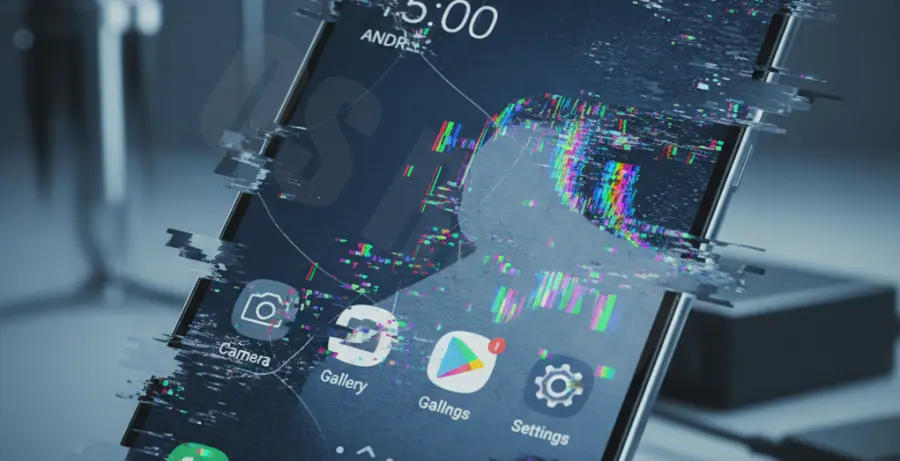
Android 15 introduces advanced display processing that can occasionally conflict with specific hardware drivers. Users typically report three main symptoms: rapid brightness oscillations, horizontal lines during app transitions, or a subtle “strobe” effect when the screen is at low brightness.
To diagnose the issue, first check if the flickering occurs in the bootloader or during the initial “Powered by Android” screen. If the flickering is present there, it is likely a hardware defect. If it only appears after the OS loads, it is a software conflict within Android 15.
Troubleshooting Guide
Follow these technical steps to stabilize the display output on your Android 15 device. We recommend starting with the least invasive methods first.
1. Force Peak Refresh Rate
Android 15 uses a dynamic refresh rate to save battery. If the flickering happens during the switch between 60Hz and 120Hz, forcing a constant rate often fixes it. Enable Developer Options and use the following command via ADB if the toggle is hidden:
adb shell settings put global peak_refresh_rate 120.02. Disable Adaptive Brightness
The updated light-sensing algorithms in Android 15 can sometimes cause “hunting” behavior, where the screen rapidly adjusts brightness levels. Navigate to Settings > Display and toggle off Adaptive Brightness to see if the flickering stops.
3. Comparison of Fixes
| Fix Method | Primary Target | Data Loss Risk |
|---|---|---|
| Refresh Rate Lock | Driver Sync Issues | None |
| Safe Mode Boot | Third-party App Conflicts | None |
| Factory Reset | Corrupt System Image | High |
4. Check for Display Overlays
Apps that use the “Display over other apps” permission—such as blue light filters or screen recorders—may not yet be optimized for the Android 15 windowing engine. Disable these apps individually to identify the culprit.
Prevention
To prevent future display instability, ensure you are running the latest security patch. Google frequently releases sub-version updates (e.g., Android 15 QPR) specifically to address display driver regressions.
Avoid using “Screen Dimmer” apps from the Play Store that use software overlays. Instead, utilize the native “Extra Dim” feature found in the Quick Settings panel, as it is integrated directly into the Android 15 rendering pipeline.