Symptoms & Diagnosis
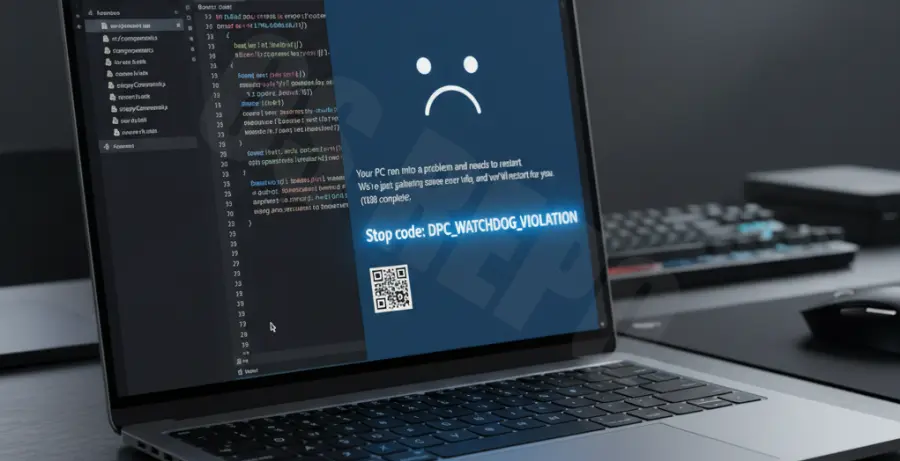
When Visual Studio Code causes a Blue Screen of Death (BSOD), the experience usually begins with a sudden mouse cursor freeze or a total system hang. After a few seconds of unresponsiveness, Windows triggers a stop code such as DPC_WATCHDOG_VIOLATION or SYSTEM_SERVICE_EXCEPTION.
This issue is frequently tied to how VS Code interacts with your Graphics Processing Unit (GPU) or corrupted cache files in the Electron framework. Identifying whether the crash happens during file indexing or while rendering the UI is the first step toward a fix.
Troubleshooting Guide
The most effective solution for VS Code BSODs is disabling hardware acceleration. This forces the editor to render via the CPU, bypassing unstable GPU drivers that cause the system kernel to panic.
# Launch VS Code without GPU acceleration from the terminal
code --disable-gpu
If the problem persists, you may need to clear the local storage and cache directories where corrupted session data might reside. Use the following commands based on your operating system environment.
# For Windows (PowerShell)
rm -r $env:APPDATA\Code\Cache\*
rm -r $env:APPDATA\Code\CachedData\*

# For Linux/macOS
rm -rf ~/.config/Code/Cache/*
rm -rf ~/.config/Code/CachedData/*
Below is a diagnostic table to help you identify the root cause based on the specific Windows Stop Code you receive during the crash.
| Stop Code | Likely Cause | Recommended Action |
|---|---|---|
| DPC_WATCHDOG_VIOLATION | SSD Firmware or GPU Driver | Update GPU drivers and disable hardware acceleration. |
| CLOCK_WATCHDOG_TIMEOUT | CPU/Processor Overload | Disable “Visual Studio IntelliCode” extension temporarily. |
| KERNEL_SECURITY_CHECK_FAILURE | Corrupt System Files | Run sfc /scannow in an admin command prompt. |
Prevention
Keeping your development environment stable requires proactive maintenance of both the software and the underlying hardware drivers. Follow these steps to minimize the risk of future system crashes.
- Update Electron: Always run the latest version of VS Code, as Electron updates often include critical stability patches.
- Monitor Extensions: Disable high-resource extensions like “Tabnine” or “Copilot” if you notice high RAM usage before a freeze.
- Switch Release Channels: If the Stable build is crashing, try the VS Code Insiders build to see if a fix is already in the pipeline.
- Dedicated GPU Settings: Force Windows to use “Power Saving” (Integrated Graphics) for VS Code via System > Display > Graphics.