Symptoms & Diagnosis
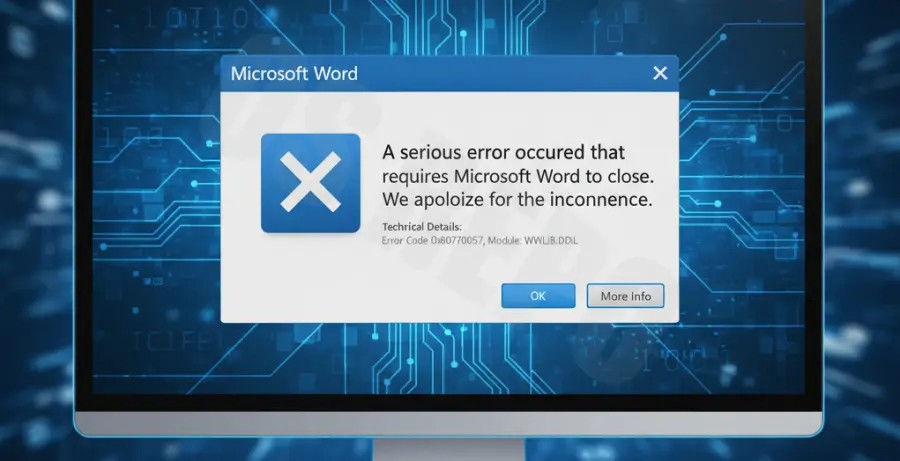
The winword.exe application error typically occurs when Microsoft Word encounters a critical instruction it cannot process. This results in the application crashing directly to the desktop (CTD) without saving your progress.
Common symptoms include error codes such as 0xc0000005 or 0xc0000142. You may notice Word freezing on the splash screen or closing instantly when you attempt to open a specific document or use a certain feature.
Diagnosis involves checking the Windows Event Viewer. Look under “Windows Logs” > “Application” for “Error” entries related to “Faulting application name: WINWORD.EXE”. This log often identifies the specific faulting module, such as a DLL file or a third-party add-in.
Troubleshooting Guide
Method 1: Launch Word in Safe Mode
To determine if the crash is caused by templates or add-ins, use the Safe Mode command. This bypasses the Normal.dotm template and third-party extensions.
winword /safeIf Word functions correctly in Safe Mode, the issue is likely a corrupted customization or a conflicting plugin.
Method 2: Disable Problematic Add-ins
If Safe Mode works, you must identify which add-in is causing the winword.exe failure. Use the table below to manage common problematic extensions.
| Add-in Type | Common Culprits | Recommended Action |
|---|---|---|
| COM Add-ins | PDF Creators, Mendeley, Grammarly | Disable one by one in Options > Add-ins |
| Word Add-ins | Macro-enabled templates (.dotm) | Remove from the Startup folder |
Method 3: Repair the Office Installation
Corrupted binary files within the Microsoft Office installation directory often trigger application errors. Use the built-in Repair utility to reset the executable files.
Go to Control Panel > Programs and Features, select Microsoft Office, and click Change. Select Online Repair for a comprehensive fix of the winword.exe environment.
Method 4: Run System File Checker
Sometimes the error isn’t Word itself, but a corrupted Windows system library that Word relies on. Use the command line to verify system integrity.
sfc /scannowPrevention
To prevent future winword.exe application errors, ensure that Microsoft 365 or your standalone Office version is set to update automatically. Frequent updates patch memory leak vulnerabilities.
Avoid using outdated third-party plugins that are not explicitly compatible with your version of Windows. Additionally, regularly clear your temporary folders to prevent cache conflicts.
Lastly, keep your graphics drivers updated. Hardware acceleration in Word can sometimes conflict with outdated GPU drivers, leading to a crash to desktop.