| Method | Effort Level | Success Rate |
|---|---|---|
| Force Restart | Low | 60% |
| Recovery Mode Update | Medium | 85% |
| DFU Mode Restore | High | 95% |
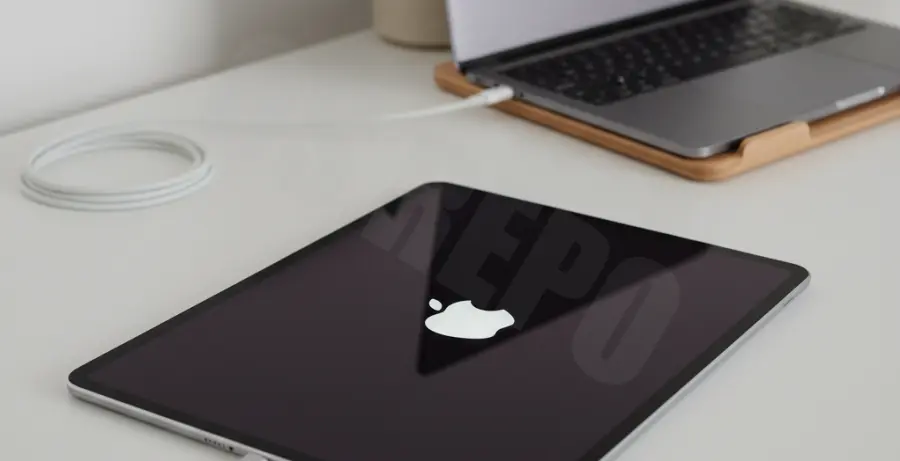
What is iPad Pro Stuck on Apple Logo After Update?
This issue, commonly known as a “boot loop” or “soft brick,” occurs when the iPad Pro hardware fails to communicate with the software during the startup sequence. It usually happens immediately after an iPadOS update fails or gets interrupted.
When you see the Apple logo frozen on the screen, it means the operating system has failed to load the kernel. This is often caused by corrupted update files, insufficient storage space during the installation, or a crash in the system’s firmware.
Step-by-Step Solutions
1. Perform a Forced Restart
A forced restart cuts power to the logic board and forces the iPad Pro to initialize a fresh boot sequence. This often resolves minor software glitches without deleting any data.
For iPad Pro models with Face ID (No Home Button):
- Press and quickly release the Volume Up button.
- Press and quickly release the Volume Down button.
- Press and hold the Top (Power) button until the Apple logo disappears and reappears.
2. Use Recovery Mode via Computer
If the forced restart fails, you must use a Mac or a PC with iTunes. This method attempts to reinstall the iPadOS firmware while keeping your data intact.
Connect your iPad Pro to your computer and follow the button sequence used for a forced restart, but continue holding the Top button even after the Apple logo appears. Release it only when you see the “Connect to Computer” or Recovery Mode screen.
Select “Update” on your computer pop-up. This will reinstall the software without wiping your files.
3. Advanced DFU Mode Restore
Device Firmware Update (DFU) mode is the deepest type of restore. It allows the iPad to communicate with the computer without loading the OS. Note: This will erase all data on the device.
To verify if your computer recognizes the iPad in this state, you can use terminal tools to check the USB connection status:
# Check for connected Apple devices in DFU/Recovery mode
system_profiler SPUSBDataType | grep -i "iPad"
# Or use specific mobile device tools
idevice_id -l
4. Check for Sufficient Storage
If you successfully get past the logo but it happens again, your iPad may have “0MB” of available space. This causes the file system to crash during the post-update indexing process. Ensure you have at least 5GB of free space before attempting another update.