Symptoms & Diagnosis
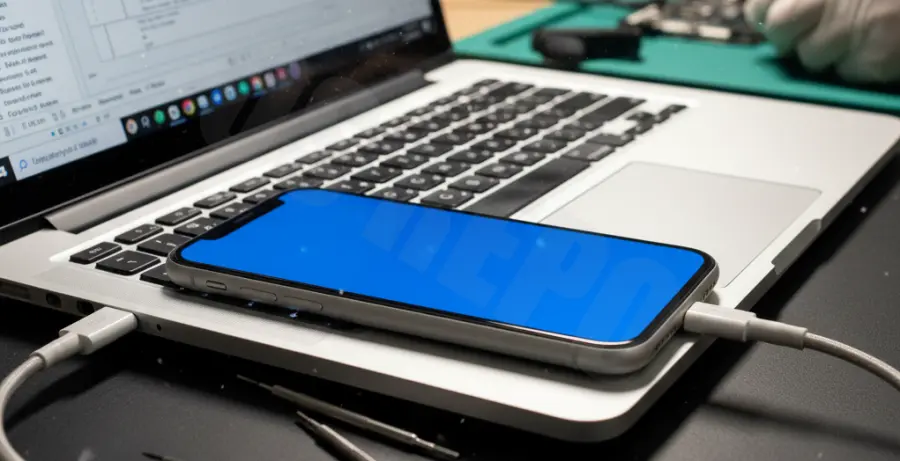
The “Blue Screen of Death” (BSOD) on iOS 18 is a critical system error that indicates a kernel panic. Unlike a standard crash, a blue screen signifies that the operating system has encountered an instruction it cannot execute, forcing an immediate hardware reset.
Common symptoms include a flash of solid blue on the display, followed by an abrupt shutdown and an infinite boot loop. This is typically caused by corrupted firmware during the OTA (Over-The-Air) update process or a hardware-level failure in the NAND flash memory communication.
Diagnosis usually points to one of three areas: a failed write operation during the iOS 18 installation, incompatible driver signatures for older hardware components, or insufficient voltage during the initial boot sequence.
Troubleshooting Guide
Resolving an iOS 18 blue screen requires forcing the device out of its current state and re-initializing the firmware. Follow these steps in order of increasing complexity.
Step 1: The Force Restart Sequence
A hard reset cuts power to the CPU and clears the volatile memory (RAM), which can often bypass a stuck kernel process.
| Step | Action |
|---|---|
| 1 | Press and quickly release the Volume Up button. |
| 2 | Press and quickly release the Volume Down button. |
| 3 | Press and hold the Side button until the Apple logo appears. |
Step 2: Recovery Mode via Apple Configurator
If the restart fails, you must use a Mac or PC to re-flash the operating system. For advanced users on macOS, Apple Configurator can be used to “Revive” the device without losing data.
For those using command-line interface tools to manage mobile devices, you can attempt to trigger recovery signals using automated scripts:
# Attempting to identify the device in DFU or Recovery mode
idevicepair pair
# Force restart via terminal logic if connected
idevicediagnostics restart
Step 3: DFU Mode Restore
If the blue screen persists during the Apple logo phase, a Device Firmware Update (DFU) restore is necessary. This erases all data and installs a fresh copy of the iOS 18 kernel. Ensure you have a backup before proceeding with this deep-level restore.
Prevention
To prevent future iOS 18 crashes, ensure your device has at least 15% of its total storage capacity free. iOS requires significant “swap space” for file indexing and system updates; if the storage is full, the write process can fail, leading to a blue screen.
Avoid installing beta profiles on your primary device. Additionally, use official MFi-certified cables for charging to ensure stable voltage, as power fluctuations during background background updates are a known cause of boot sector corruption.
Regularly check for incremental iOS 18 updates (e.g., 18.0.1) which often contain patches specifically designed to address kernel instability and BSOD loops.