Symptoms & Diagnosis
Encountering a “MySQL login failed” error on the Windows command line is a common hurdle for developers. Typically, this manifests as an “Access denied” message or a “Can’t connect to MySQL server” warning.
To diagnose the issue, you must first identify the specific error code returned by the command prompt. Each code points to a different underlying configuration or credential problem.
| Error Code | Common Message | Primary Cause |
|---|---|---|
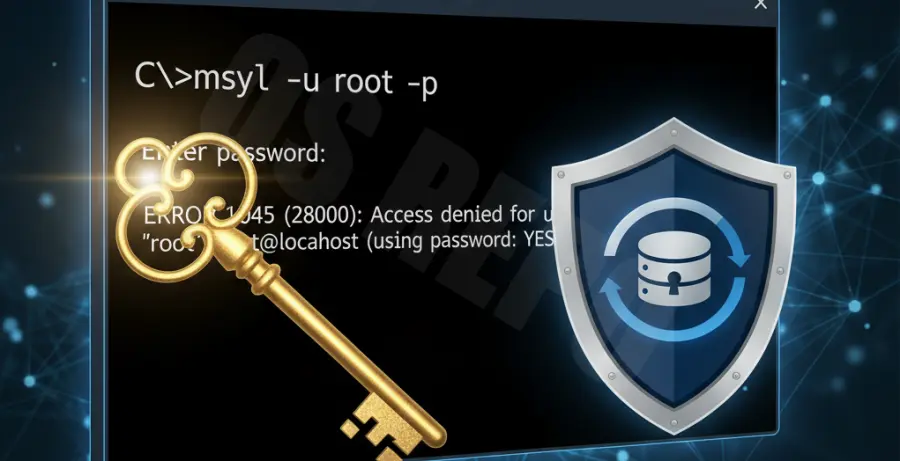
| ERROR 1045 (28000) | Access denied for user ‘root’@’localhost’ | Incorrect password or user privileges. |
| ERROR 2003 (HY000) | Can’t connect to MySQL server on ‘localhost’ | The MySQL service is not running. |
| ‘mysql’ is not recognized | Internal or external command not found | MySQL bin folder is not in Windows Environment PATH. |
Check your command syntax carefully. Windows CMD requires specific flags to trigger the password prompt correctly. If the service isn’t active, no amount of credential checking will fix the login failure.
Troubleshooting Guide
Follow these steps to resolve the most common login failures on Windows systems.
Step 1: Verify the MySQL Service Status
Ensure the MySQL service is actually running. Open CMD as Administrator and run:
net start mysqlIf your service is named differently (e.g., mysql80), use that specific name instead. If it’s already running, try restarting it.
Step 2: Correct Login Syntax
Users often forget to include the password flag. Avoid typing the password directly in the command for security reasons. Use this syntax:
mysql -u root -pAfter hitting Enter, the system will prompt you for the password securely.
Step 3: Fix Environment Variables
If you get the “not recognized” error, you must add the MySQL bin folder to your System PATH. Usually, this is found at C:\Program Files\MySQL\MySQL Server 8.0\bin.
Step 4: Resetting the Root Password
If you have forgotten the password, you must start MySQL in “skip-grant-tables” mode. Stop the service first, then run:
mysqld --shared-memory --skip-grant-tablesOpen a second CMD window to log in without a password and update the user table with a new credential.
Prevention
To avoid future MySQL login failures on Windows, implement these best practices.
First, always document your administrative credentials in a secure password manager. Avoid using the default ‘root’ account for daily application tasks; instead, create specific users with limited privileges.
Second, ensure that the MySQL service is set to “Automatic” in the Windows Services manager (services.msc). This ensures the database starts whenever your computer boots up.
Finally, keep your Environment PATH updated. If you upgrade MySQL to a newer version, the path to the bin directory often changes, which can break command-line access if not adjusted.