Symptoms & Diagnosis
Following the upgrade to macOS Sequoia, many users have reported a significant drop in data transfer rates for external SSDs and HDDs. This issue often manifests as “stuttering” during file copies or a complete system hang when browsing directories.
To diagnose if your system is affected, look for prolonged “Calculating size” messages in Finder or excessive heat from your external drive enclosure. You may also notice that the drive takes several minutes to mount after being plugged into a Thunderbolt or USB-C port.
High CPU usage by the kernel_task or mds_stores process while the drive is connected is a primary indicator that macOS Sequoia is struggling with the external file system or indexing service.
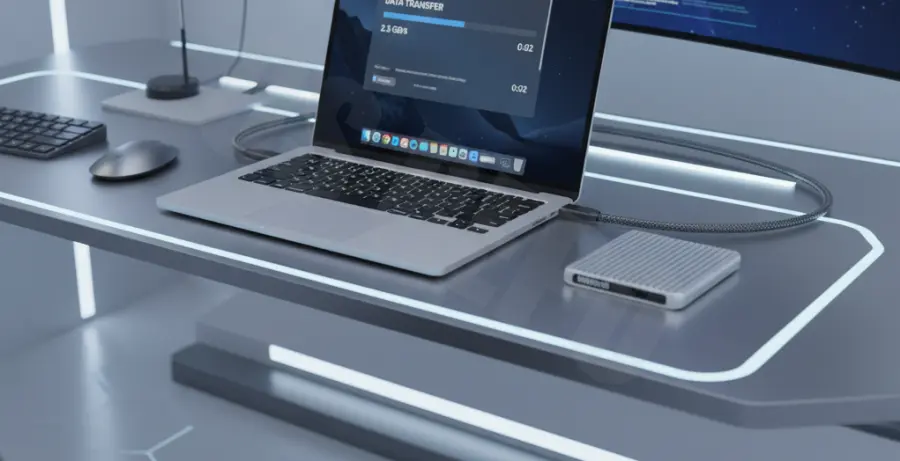
Troubleshooting Guide
1. Reset Background Indexing
macOS Sequoia often triggers a deep re-indexing of external volumes via Spotlight. This can saturate the I/O bandwidth. You can temporarily disable indexing to see if performance restores immediately.
sudo mdutil -i off /Volumes/YourDriveNameReplace “YourDriveName” with the actual name of your mounted volume. If speeds improve, let the indexing finish overnight while the system is idle.
2. Verify File System Compatibility
Sequoia has introduced stricter protocols for non-native file systems. Use the table below to determine if your drive format is causing the bottleneck.
| Format | Compatibility | Recommended Action |
|---|---|---|
| APFS | Native / High | None (Run First Aid) |
| ExFAT | Medium | Check Allocation Unit Size |
| NTFS | Low (Third-party) | Update Driver Software |
3. Toggle Privacy & Security Permissions
macOS Sequoia features enhanced “Gatekeeper” checks for external media. Sometimes, “Full Disk Access” needs to be reset for system services to communicate efficiently with the drive controller.
Navigate to System Settings > Privacy & Security > Full Disk Access. Toggle the switch off and on for any disk management utilities you use.
4. Clear System NVRAM/PRAM
For Intel-based Macs, clearing the NVRAM can resolve hardware communication issues. For Apple Silicon (M1/M2/M3), a simple “Safe Mode” boot followed by a normal restart clears the kernel cache and re-initializes hardware drivers.
sudo nvram -cPrevention
To prevent future performance degradation, always ensure you are using high-quality, certified Thunderbolt 4 or USB4 cables. Substandard cables often fail to negotiate the higher speeds required by macOS Sequoia’s updated USB stack.
Avoid using unpowered USB hubs. macOS Sequoia is more sensitive to power fluctuations on the bus, which can cause the drive controller to downshift to USB 2.0 speeds (480 Mbps) to maintain stability.
Keep your external drive firmware updated. Manufacturers like Samsung, SanDisk, and Crucial often release updates specifically to address compatibility issues with major macOS releases.