Immediate Fix: Reset Password via Terminal
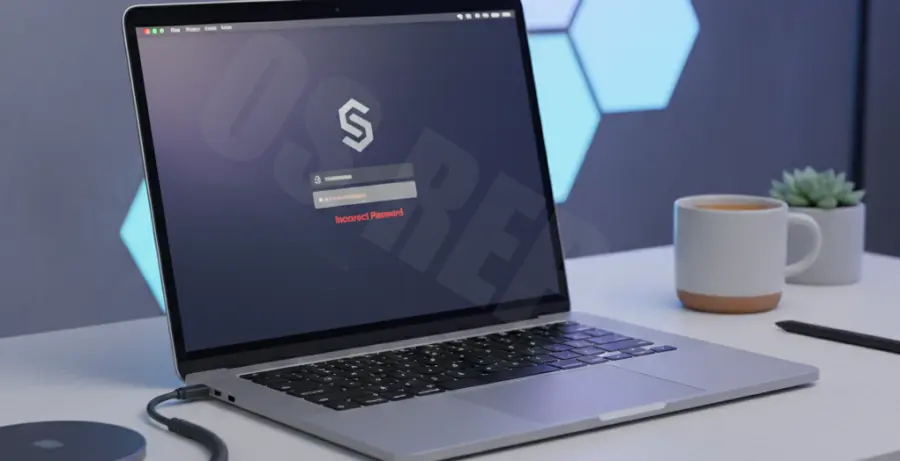
If macOS Sequoia is rejecting your correct password, the most reliable immediate fix is to force a password reset through the Recovery Environment. This bypasses the standard login screen interface.
Shut down your Mac completely. For Apple Silicon (M1/M2/M3), press and hold the Power button until “Loading startup options” appears. For Intel Macs, hold Command + R while booting.
Select “Options,” then navigate to the top menu bar. Click Utilities and select Terminal. In the window that appears, type the following command and press Enter:
resetpasswordA password reset wizard will launch. Follow the on-screen prompts to select your user account and create a new password. Restart your Mac and log in with the newly created credentials.
Technical Explanation
The “correct password” failure in macOS Sequoia usually stems from a synchronization error between the FileVault encryption layer and the local directory service (opendirectoryd).
When you enter your password, macOS must first decrypt the disk. If the encryption key stored in the Secure Enclave doesn’t match the updated user account credentials, the system rejects the input even if it is technically correct.
Another common technical cause is a corrupted Login Keychain. During the update to Sequoia, the transition of security certificates can occasionally lock the keychain, preventing the login window from verifying the hashed password against the system’s database.
Alternative Methods
If the Terminal method is not accessible, try these alternative troubleshooting steps to regain access to your system.
1. Check Keyboard Layout
Ensure that the keyboard layout hasn’t reverted to a different region (e.g., US vs. UK) at the login screen. Check the top-right corner for a flag icon. A different layout changes the mapping of special characters.
2. Boot into Safe Mode
Safe Mode clears system caches and disables third-party login items that might interfere with the authentication process. For Apple Silicon, hold the power button, select your volume, hold the Shift key, and click Continue in Safe Mode.
3. Use Apple ID Recovery
If you have “Allow Apple ID to reset password” enabled in your settings, click the question mark icon in the password field three times. This will trigger a prompt to reset using your iCloud credentials.
| Method | Success Rate | Data Risk |
|---|---|---|
| Terminal (resetpassword) | High | None |
| Safe Mode | Medium | None |
| Apple ID Reset | High | Requires Internet |
| Full Reinstall | 100% | High (Wipes Data) |