| Checklist Item | Quick Fix Action |
|---|---|
| Tab Status | Right-click tab > Unmute site |
| Site Settings | Check chrome://settings/content/sound |
| System Mixer | Verify Chrome volume in OS Volume Mixer |
| Extensions | Disable Ad-blockers or Audio Enhancers |
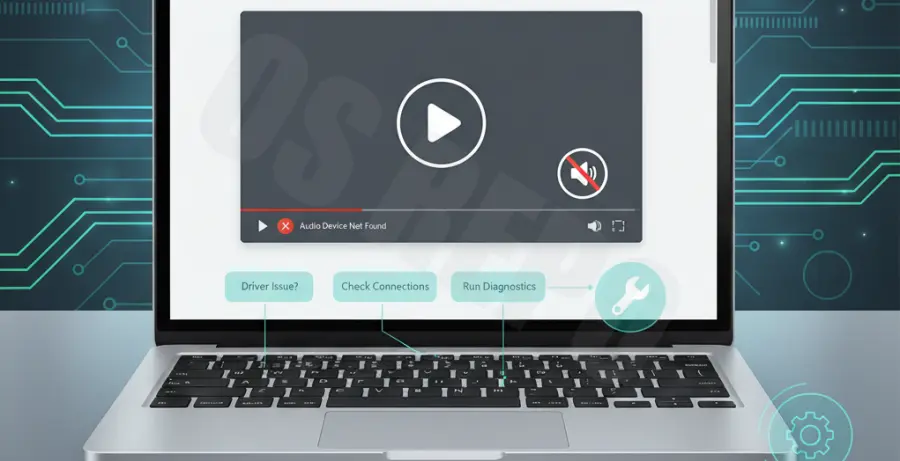
What is No Sound in Google Chrome?
No sound in Google Chrome is a common issue where audio fails to play within the browser, despite the system volume being functional for other applications. This specific glitch can occur on Windows, macOS, and Linux platforms.
The problem usually stems from site-specific permissions, muted tabs, or browser-wide settings. In some cases, outdated drivers or corrupted cache files can prevent the browser’s audio renderer from communicating with your hardware.
Step-by-Step Solutions
1. Unmute Individual Tabs
Google Chrome allows you to mute audio on a per-tab basis. Look for a speaker icon on the tab label. If it has a cross through it, the tab is muted.
To fix this, right-click the tab at the top of the window and select Unmute site. This restores sound to all pages under that specific domain.
2. Check Chrome’s Content Settings
Chrome has a master switch for site sounds. If this is toggled off, no website will produce audio. Navigate to the following address in your URL bar:
chrome://settings/content/sound
Ensure that the toggle for “Sites can play sound” is enabled. Also, check the “Not allowed to play sound” list to ensure your current website isn’t blacklisted.
3. Use the Volume Mixer (Windows)
Sometimes the operating system mutes Chrome while keeping other apps active. Right-click the speaker icon in your system tray and select Open Volume Mixer.
Locate the Google Chrome icon and ensure the slider is moved up and the icon does not have a red “mute” symbol.
4. Clear Browser Cache and Cookies
Corrupted data can interfere with the browser’s ability to decode audio streams. Press Ctrl+Shift+Del (Windows) or Cmd+Shift+Del (Mac) to open the Clear Browsing Data menu.
Select “Cached images and files” and “Cookies and other site data,” then click Clear data and restart the browser.
5. Verify Version via Command Line
Ensuring you are on the latest stable build can resolve bugs related to audio rendering. You can check your current version using the terminal:
google-chrome --version6. Disable Conflicting Extensions
Third-party extensions, especially ad-blockers or volume boosters, can frequently break audio functionality. Try opening your site in Incognito Mode (Ctrl+Shift+N).
If the sound works in Incognito, one of your extensions is likely the culprit. Disable them one by one to find the source of the conflict.