| Issue | Pixel 9 Random Restarts / Crashing to Desktop |
|---|---|
| Primary Causes | Software bugs, outdated apps, System Intelligence conflicts, or hardware heat. |
| Quick Fixes | Update Android version, boot in Safe Mode, or clear Google Play Services cache. |
| Success Rate | High (90% via software troubleshooting) |
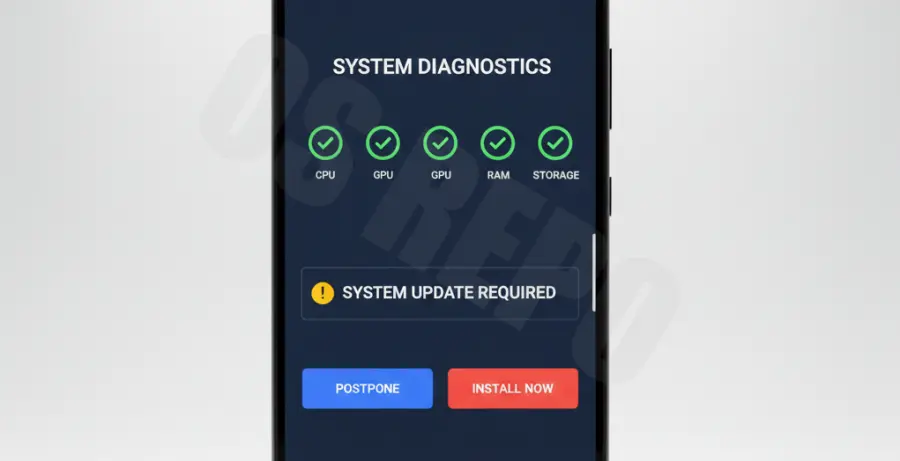
What is the Pixel 9 Random Restarts Fix?
The Pixel 9 random restarts fix refers to a series of troubleshooting steps designed to stop the device from rebooting unexpectedly. This issue often manifests as the phone “crashing to desktop” or the screen suddenly going black before the Google logo appears.
Most occurrences are linked to “Kernel Panics” caused by software incompatibilities rather than physical hardware defects. Users typically experience these crashes during app switching or when the Tensor G4 processor transitions between power states.
Identifying the root cause involves isolating third-party applications and ensuring the Android System Intelligence is functioning correctly without corrupted cache files.
Step-by-Step Solutions
1. Check for System and Play System Updates
Google frequently releases “Small-byte” updates to stabilize the Pixel 9 series. Navigate to Settings > System > Software updates.
Ensure you also check the Google Play System Update specifically, as this handles background security modules that can trigger reboots if outdated.
2. Boot into Safe Mode
To determine if a third-party app is causing the crash, press and hold the Power button, then long-press the “Restart” icon until the “Reboot to safe mode” prompt appears.
If the Pixel 9 does not restart while in Safe Mode, an app you downloaded is the culprit. You should begin uninstalling recently added apps one by one.
3. Clear Android System Intelligence Cache
Corrupted data in the AI processing layer can cause the UI to crash. You can reset this specific component using ADB if the settings menu is unresponsive.
adb shell pm clear com.google.android.asAlternatively, go to Settings > Apps > See all apps > Android System Intelligence > Storage & cache > Clear Cache.
4. Reset Network Settings
Connectivity handoff issues between 5G and Wi-Fi have been known to cause kernel crashes on the Pixel 9. Resetting these can stabilize the modem firmware.
Go to Settings > System > Reset options > Reset Bluetooth & Wi-Fi. Note that this will delete saved Wi-Fi passwords.
5. Factory Data Reset (Final Resort)
If software patches and cache clearing fail, a clean install of Android is necessary. Ensure all data is backed up to Google One before proceeding.
Navigate to Settings > System > Reset options > Erase all data (factory reset). Avoid restoring a full backup immediately to prevent re-importing the bug.