Immediate Fix: Triggering requestDevice() via User Gesture
The most common reason for the “web bluetooth api requestdevice failed” error is calling the function without a user gesture. Security policies require that Bluetooth discovery prompts are triggered by a direct action, such as a button click or touch event.
Wrap your `requestDevice()` call inside an event listener to resolve the permission error immediately. Ensure you are also serving your site over **HTTPS**, as Web Bluetooth is a powerful feature that requires a secure context.
// Correct way to trigger the Bluetooth prompt
document.querySelector('#connectBtn').addEventListener('click', async () => {
  try {
    const device = await navigator.bluetooth.requestDevice({
      acceptAllDevices: true
    });
    console.log('Device selected:', device.name);
  } catch (error) {
    console.error('Connection failed:', error);
  }
});
Technical Explanation: Why requestDevice() Fails
The Web Bluetooth API operates within a strict security sandbox to prevent “drive-by” device scanning. If your code attempts to scan for devices automatically on page load, the browser will throw a `SecurityError` or a `DOMException` stating that a user gesture is required.
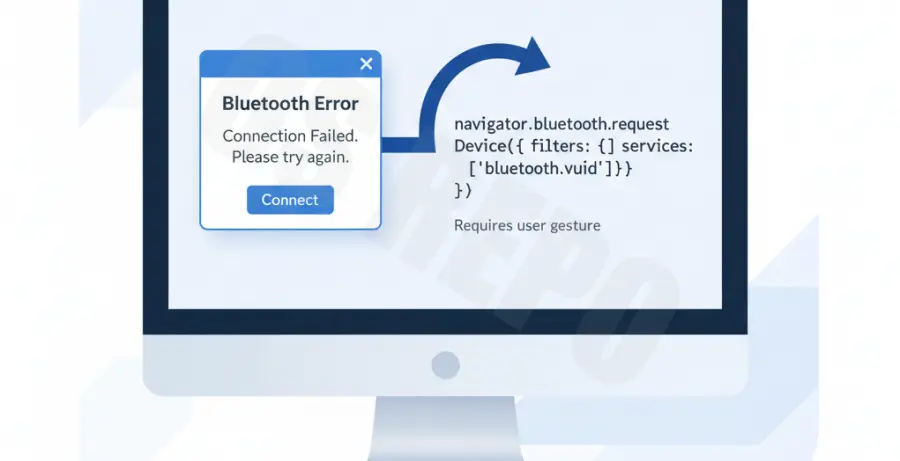
Another common technical hurdle is the “Filter” requirement. If you aren’t using `acceptAllDevices: true`, you must provide a valid service UUID. Failing to match the device’s advertised services will result in an empty list or a “NotFoundError.”
| Error Message | Primary Cause | Resolution |
|---|---|---|
| SecurityError | Missing user gesture or non-HTTPS connection. | Trigger via button click and use SSL. |
| NotFoundError | Device filters don’t match or scanning timed out. | Check UUIDs or use acceptAllDevices. |
| NotSupportedError | Browser or OS does not support Web Bluetooth. | Update Chrome or check OS Bluetooth settings. |
Alternative Methods to Solve Connection Issues
Method 2: Verifying Browser and Flag Settings
If the code is correct but still fails, check your browser’s internal settings. In some environments, Web Bluetooth must be manually enabled via experimental flags.
Navigate to `chrome://flags` in your URL bar and search for “Experimental Web Platform features.” Enable this flag and restart your browser to ensure all Bluetooth capabilities are unlocked for development.
Method 3: Checking OS-Level Permissions
Sometimes the failure isn’t in your JavaScript code, but in the operating system’s privacy settings. Ensure that your browser (Chrome, Edge, or Bluefy) has permission to access “Bluetooth” or “Location” in the system settings.
On macOS, check **System Settings > Privacy & Security > Bluetooth**. On Windows, ensure that Bluetooth is toggled “On” and that “Allow apps to access your location” is enabled, as discovery often relies on location services.