| Issue | Quick Fix | Estimated Time |
|---|---|---|
| Slack audio defaults to speakers | Change Slack “Audio Settings” manually | 1 Minute |
| Bluetooth device not recognized | Re-pair device and restart Slack | 3 Minutes |
| Driver Conflicts | Update Bluetooth drivers | 5 Minutes |
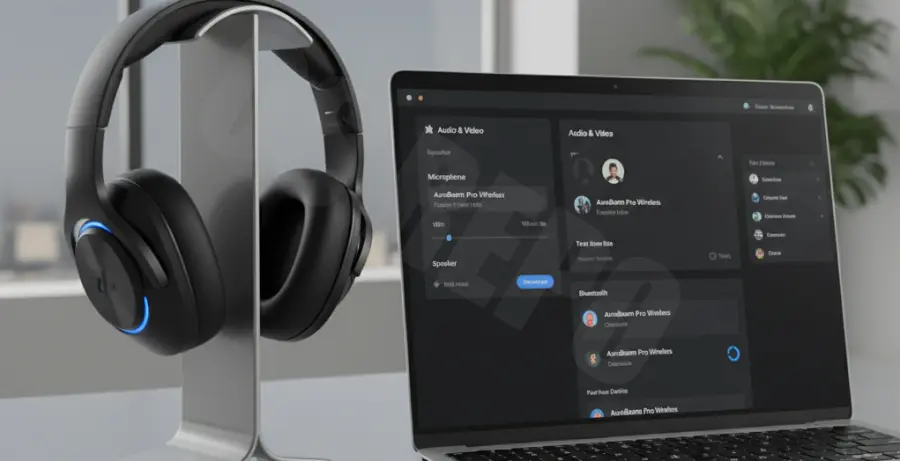
What is Slack call audio not switching to Bluetooth?
Slack call audio not switching to Bluetooth is a common technical glitch where the Slack desktop or mobile application fails to route sound to a connected wireless headset. Instead, the audio continues to play through the computer’s built-in speakers or a wired peripheral.
This issue often stems from “Slack Bluetooth Pairing Failed” errors or internal application preferences that do not automatically update when a new output device is detected. It can occur on Windows, macOS, and mobile platforms, disrupting professional communication.
Step-by-Step Solutions
1. Manually Adjust Slack Audio Preferences
Slack maintains its own internal hardware settings which can sometimes override your system’s default output. This is the most common reason for audio routing failures.
- Open Slack and click your profile picture in the bottom-left/top-right.
- Navigate to Preferences > Audio & Video.
- Under Speaker, click the dropdown menu and specifically select your Bluetooth headset name.
- Repeat the process for the Microphone section if needed.
2. Reset the Bluetooth Service
Sometimes the handshake between your OS and Slack fails. Restarting the Bluetooth stack can force a re-detection of the audio stream.
For Windows users, you can restart the Bluetooth support service using the command line to ensure all background processes are refreshed:
# Restarting Bluetooth Support Service via PowerShell (Run as Admin)
Restart-Service -Name "bthserv" -Force
3. Clear Slack Application Cache
Corrupted temporary files can cause Slack to “forget” newly paired devices. Clearing the cache forces the app to re-scan your hardware configuration.
- Click the Help menu in the Slack top bar (or the “Hamburger” icon).
- Select Troubleshooting.
- Click Clear Cache and Restart.
4. Check System-Level Permissions
On macOS and newer versions of Windows, Slack requires explicit permission to access “Bluetooth” or “Microphone” inputs. If these permissions were denied during installation, the audio switch will fail.
Go to your system’s Privacy & Security settings and ensure Slack is toggled “On” for both Microphone and Bluetooth access.
5. Update Bluetooth Drivers
Outdated drivers can lead to the “Slack Bluetooth Pairing Failed” error because the app cannot establish a secure high-definition audio link. Ensure your Bluetooth radio drivers are updated to the latest version via the Device Manager or the manufacturer’s website.